AI image variations: change one thing in your photo

Optional: “Change the book to a newspaper” or “Make it winter” — or leave this blank and let the tool choose the change

Same photo. One thing changed.

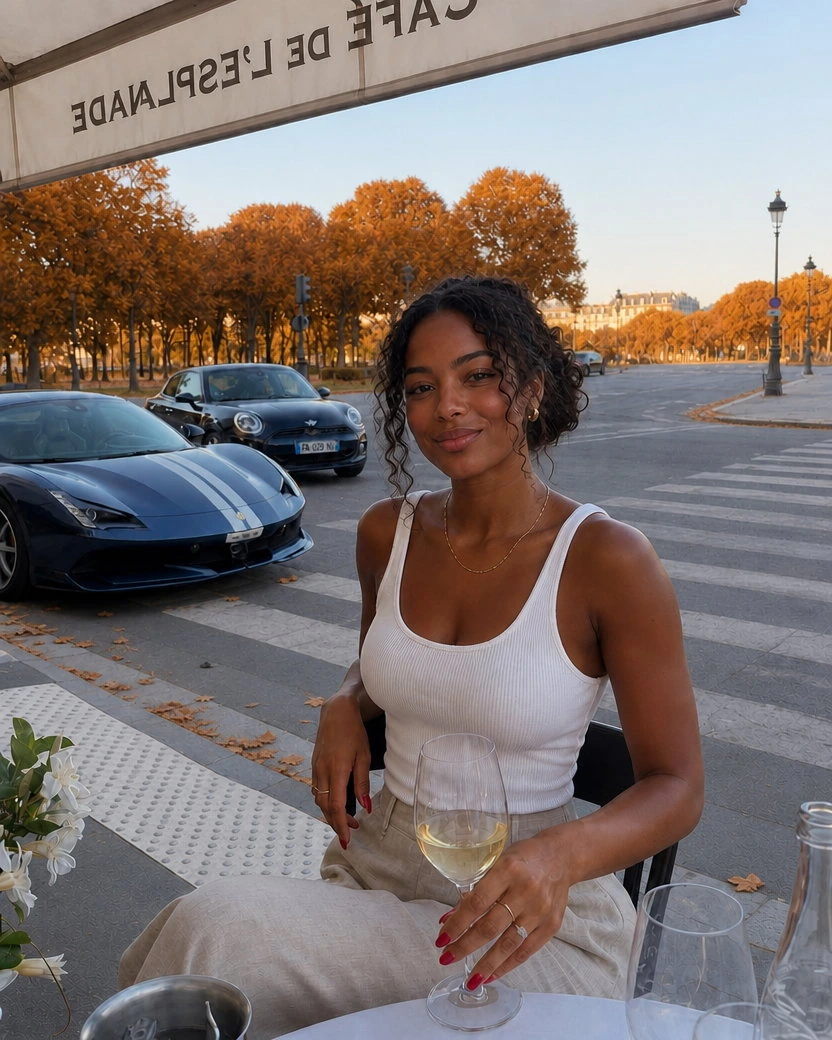
A woman with a glass of wine at a café terrace on a Paris evening, a sports car parked across the road behind her. The direction was one sentence, and the result is the same photo in autumn: same face, same white tank top, same glass under her hand and the same car at the kerb, with the plane trees turned orange down the avenue and a few fallen leaves along the kerb.
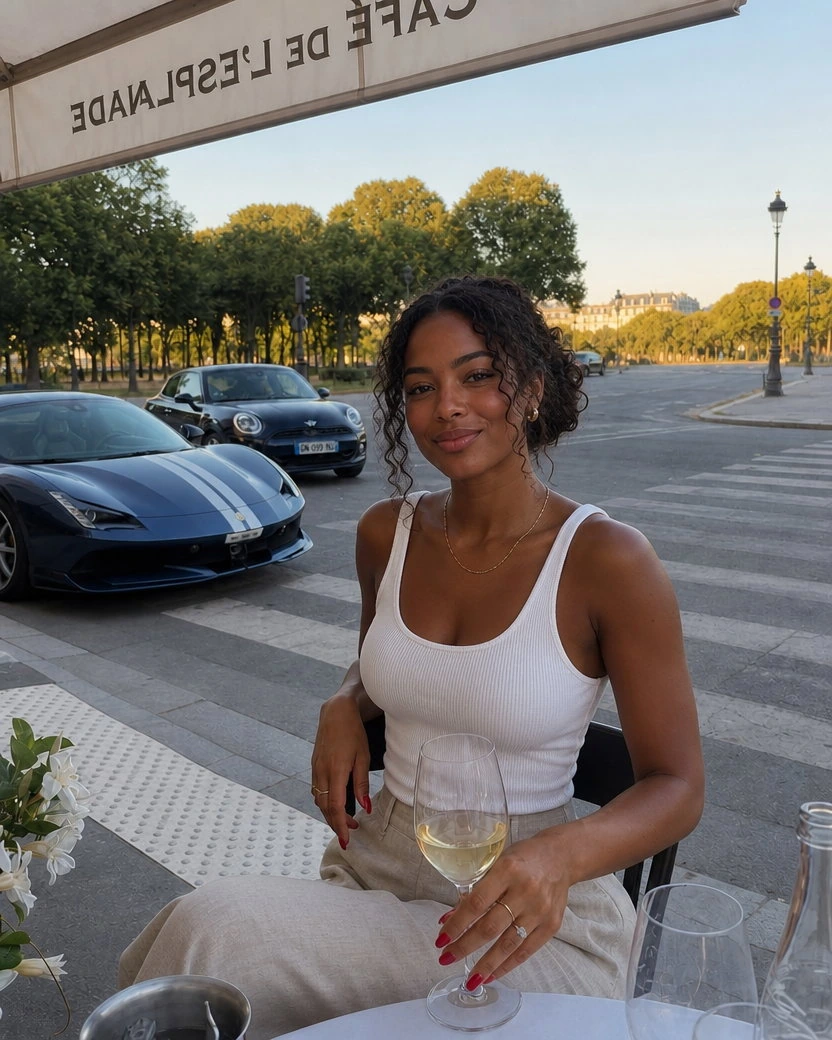
Evening phone photo at a Paris café terrace of a young Black woman with dark curly hair in a loose low bun, in a white ribbed tank top and beige linen trousers, one hand on the stem of a glass of white wine on the table, a dark blue striped sports car parked across the road behind her, plane trees and a street lamp down the avenue in low golden light
Uploaded photo
The same café terrace photo in autumn: the woman, the white tank top, the wine glass, the table and the parked sports car exactly as before, the plane trees along the avenue turned orange and a few fallen leaves along the kerb, the road and the crossing clean
Variation with GPT Image 2

DirectionMake it autumn, with the plane trees turned orange and just a few fallen leaves along the kerb, the road and the crossing otherwise clean.

What you get

  • Same photo back: same frame, same crop, same light, one image per upload by default
  • Exactly the change you typed, with its real consequences: how it is held, the shadow it throws, what it hides
  • Faces, hands, outfits, rooms, and labels stay as they were unless you name them
  • Nothing typed: the tool picks one big, useful change on its own

Four phone photos, three instructions and a blank

Each pair shows the upload next to the result. The line under it is exactly what was typed in the direction field, or nothing at all: with nothing typed, the tool picks one big change itself, the kind of version the photo's owner could actually use.

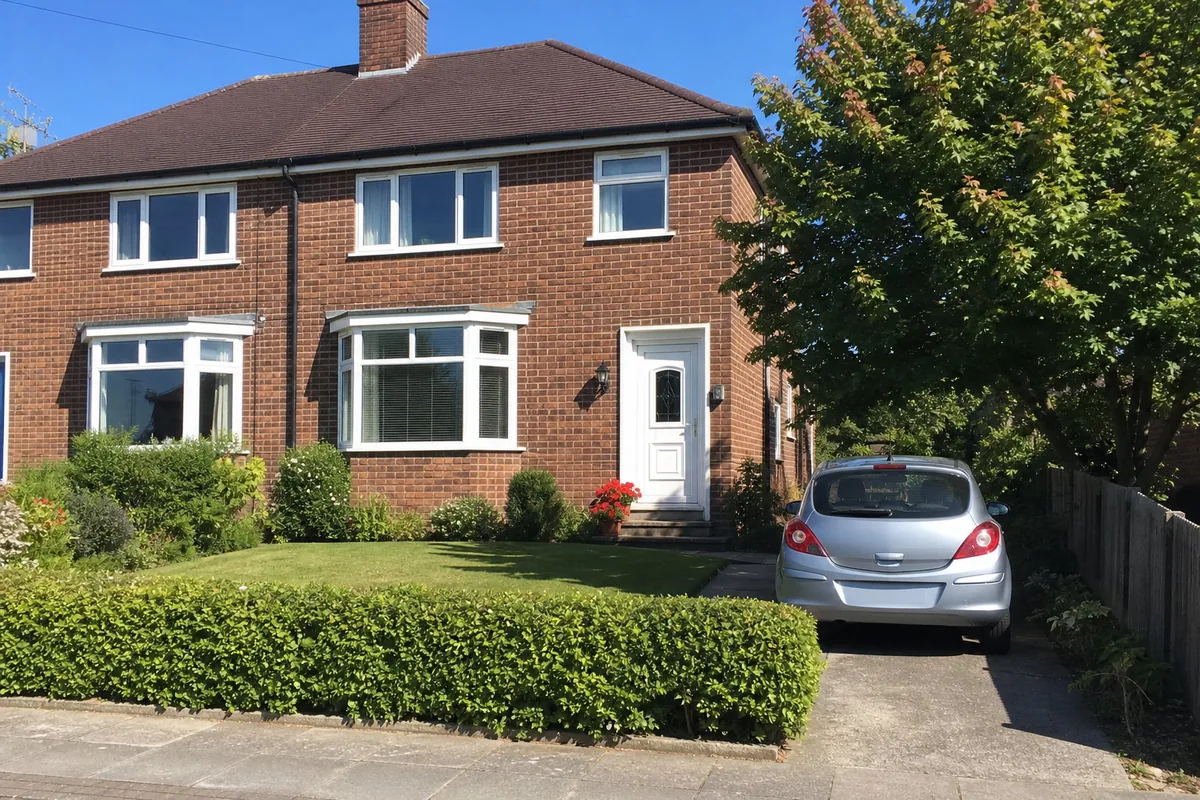
  • Phone photo of a brick semi-detached house from the pavement on a summer afternoon: a green lawn, a low hedge, a silver hatchback on the drive, a white front door with red geraniums by the step, and a leafy maple at the side
    Uploaded photo
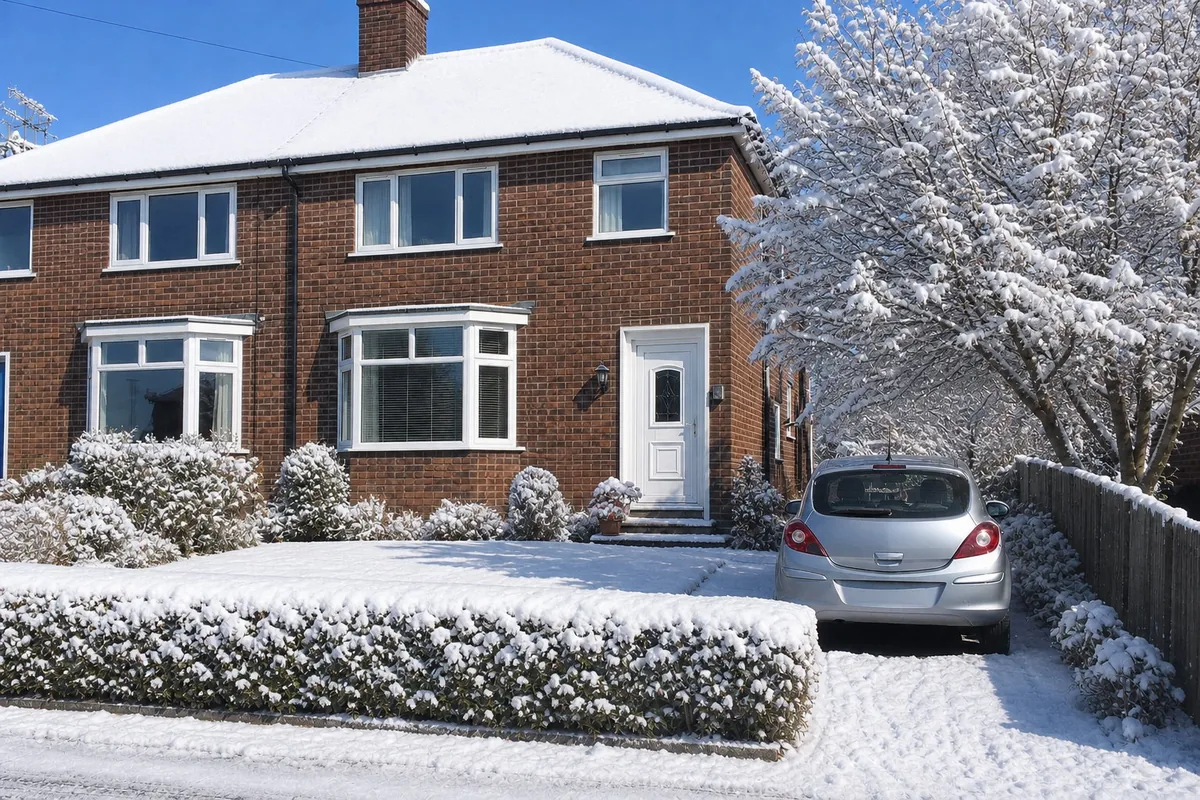
    The same semi-detached house in winter: snow on the roof, the lawn, the hedge, and the bare maple, the silver car and the white front door as before, under the same blue sky
    Variation
    Real estate and house photos

    Same house, in winter

    DirectionMake it winter, with snow on the lawn and the roof.
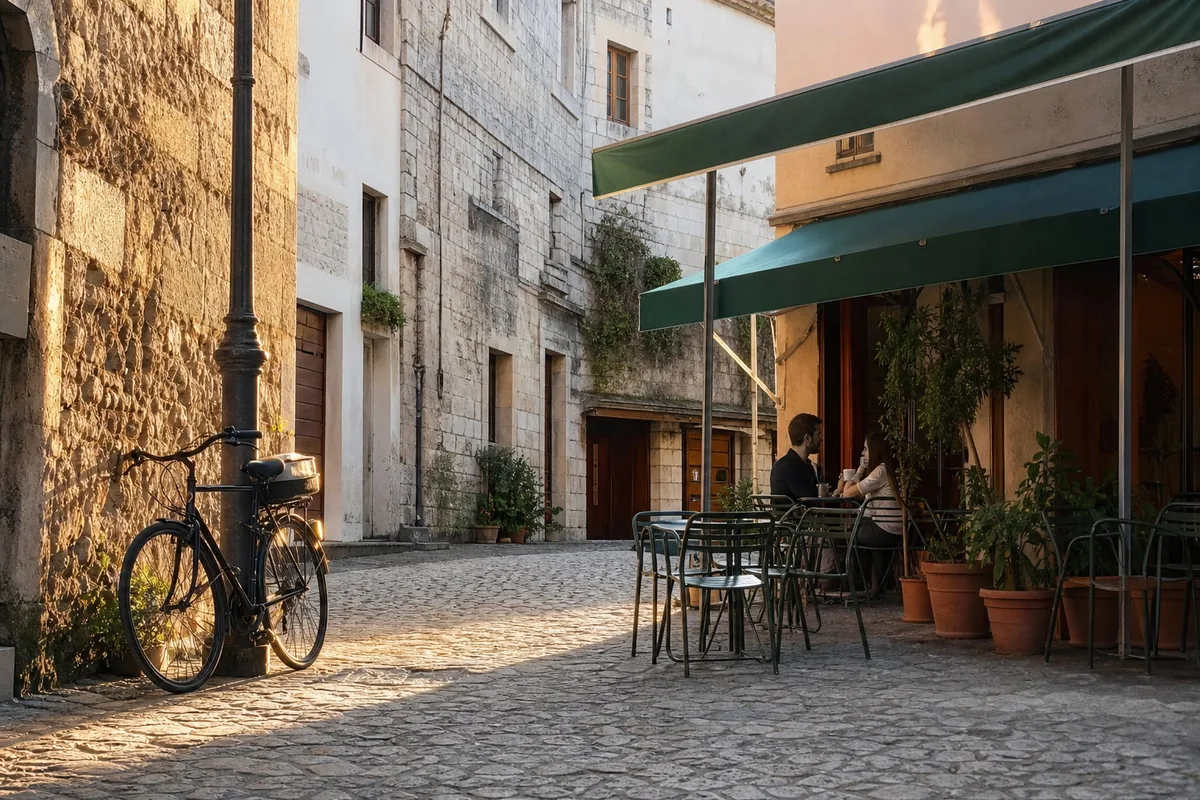
  • Late-afternoon phone photo of a quiet old-town corner: a small café terrace with metal chairs, a green awning, a bicycle leaning against a lamppost, terracotta pots by the door, and a couple with coffees at the far table
    Uploaded photo
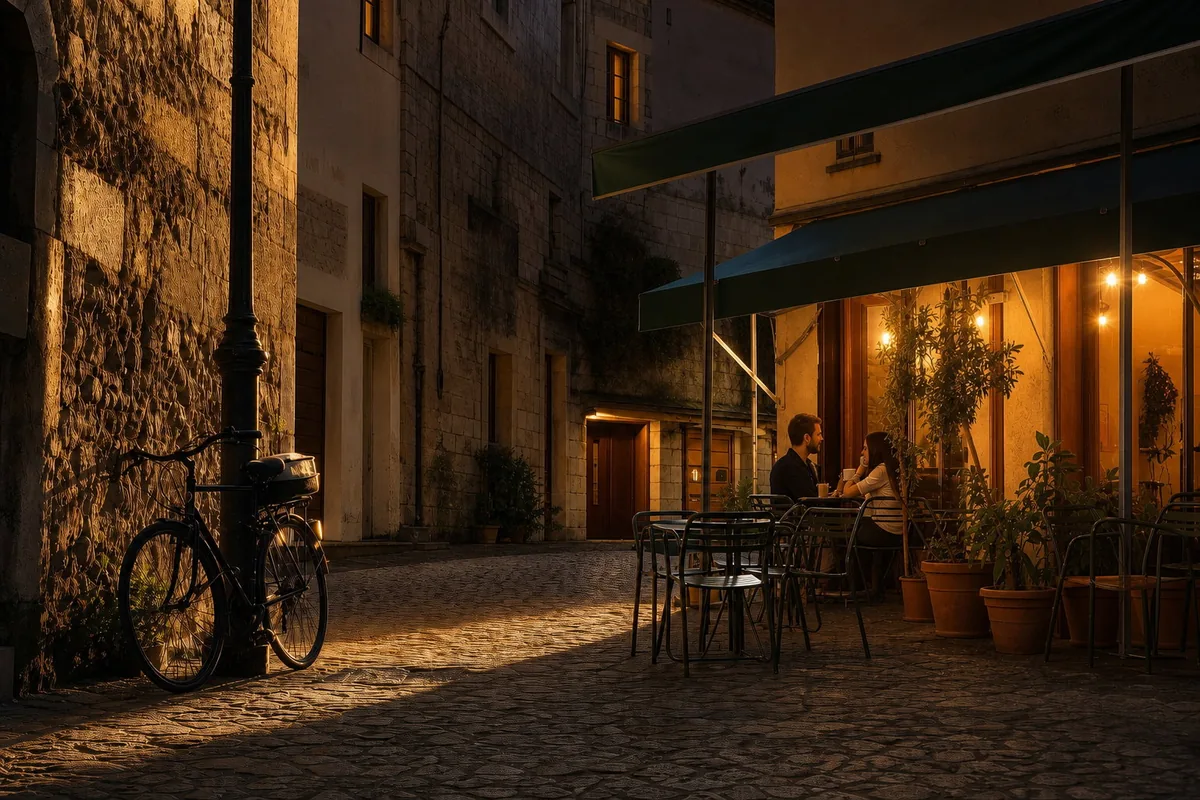
    The same café corner at night: the doorway glowing under the awning, the lamppost and the street lamps lit, the couple still at the far table, the bicycle against the post, warm light on the cobbles
    Variation
    Street and travel photos

    The same corner after dark

    DirectionMake it night, with the café lights on.

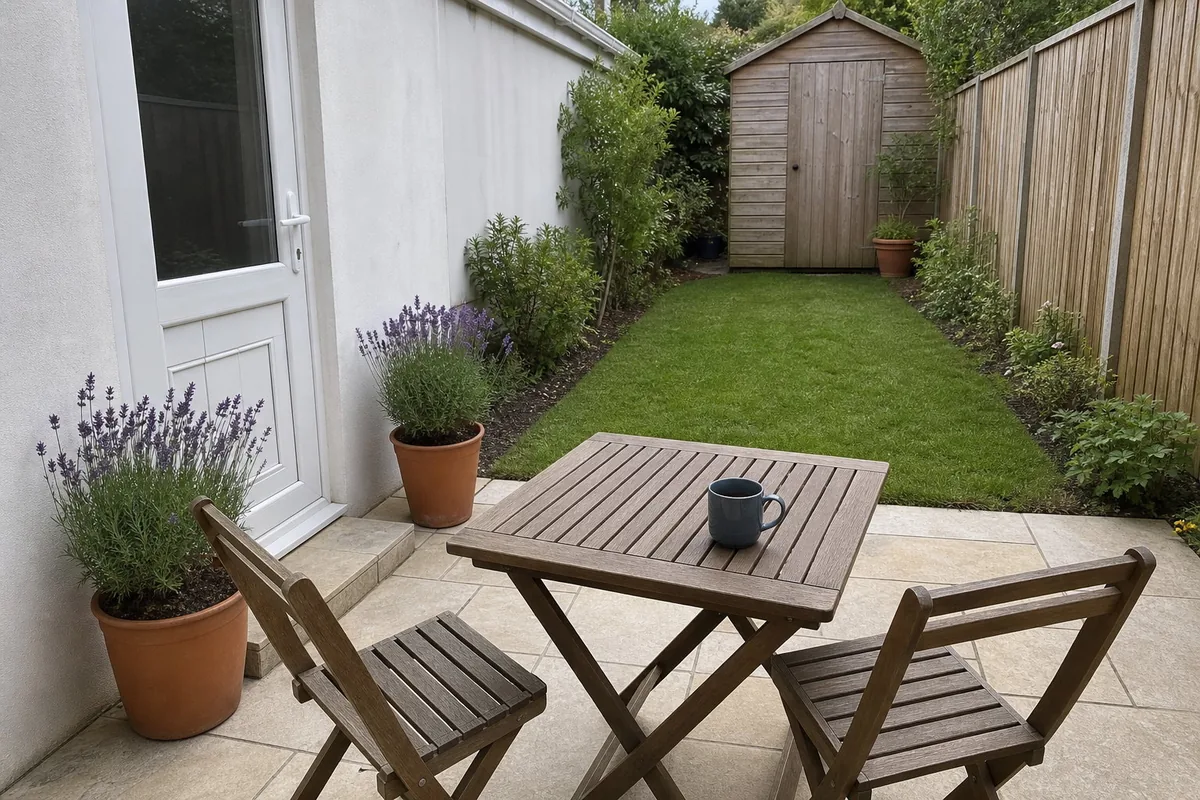
  • Bright phone photo of a small, tidy back-garden patio: a slatted wooden table with two chairs and a mug on pale paving, two pots of lavender by the back door, a strip of lawn and a timber shed at the end
    Uploaded photo
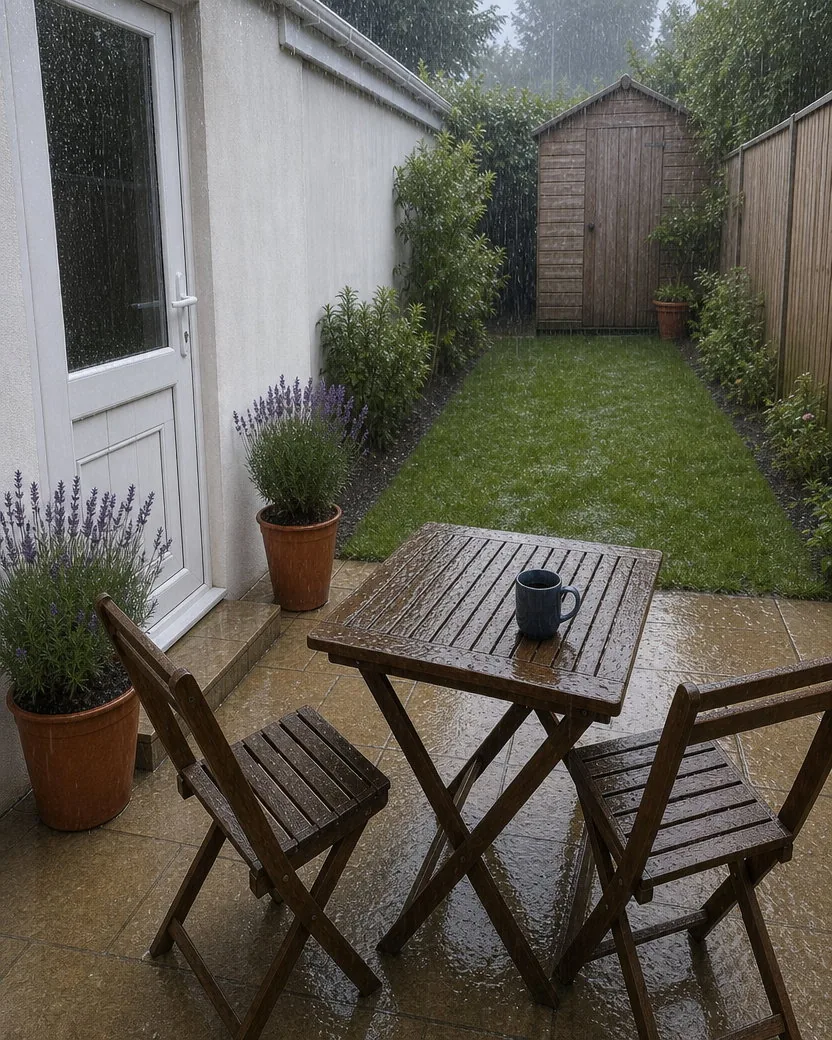
    The same patio in the rain: wet paving and table, an overcast sky, rain streaks over the fence and the shed, the chairs, the lavender pots and the mug exactly where they were
    Variation
    Garden and outdoor photos

    Two words, and it rains

    DirectionMake it rain.

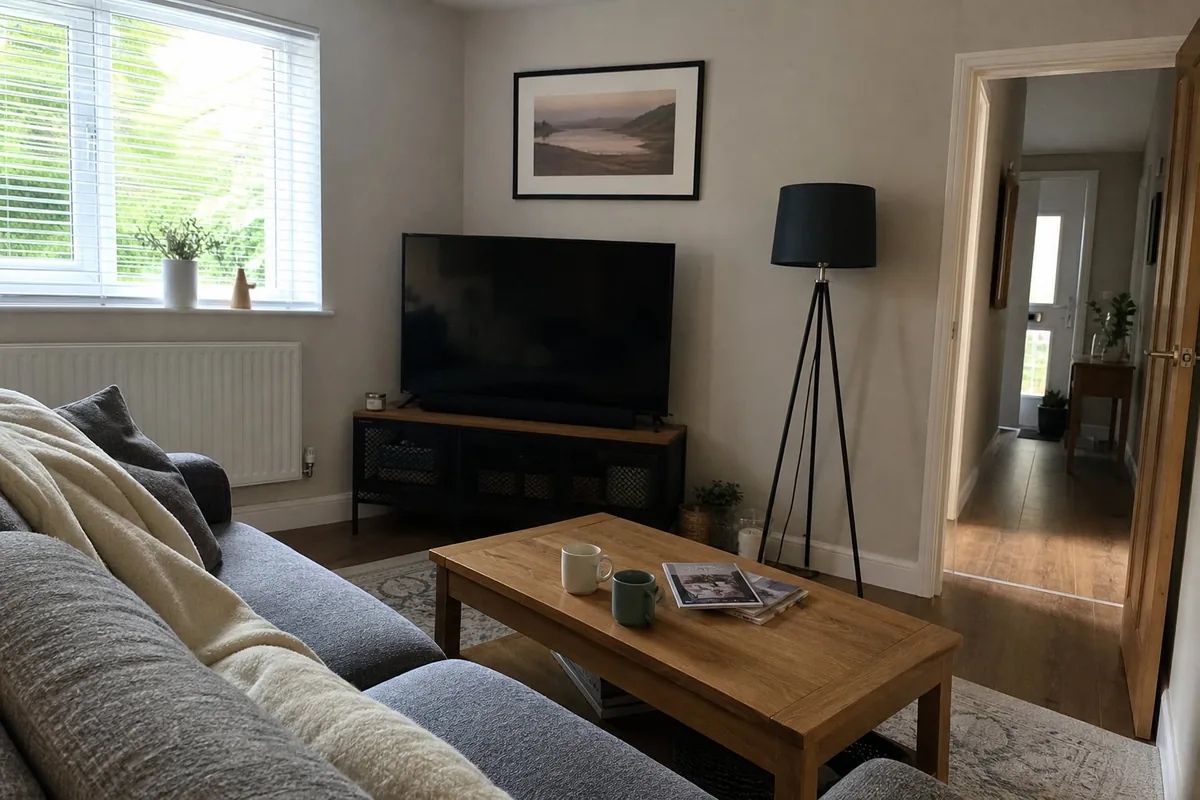
  • Unedited phone photo of a lived-in living room taken from beside the sofa: a grey sofa with a cream throw, an oak coffee table with two mugs and magazines, a window with white blinds on the left, a doorway into a hallway on the right, and a TV under a framed print
    Uploaded photo
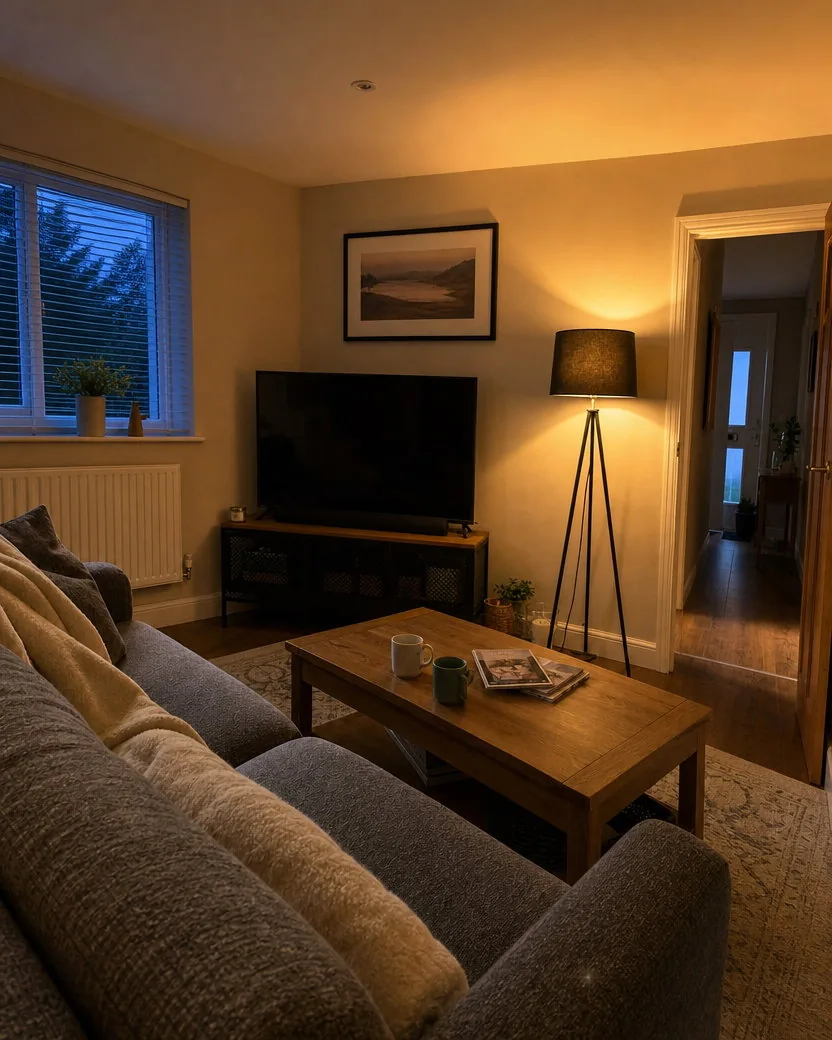
    The same living room at dusk with nothing else changed: the tripod lamp switched on and glowing, the blinds showing a darkening sky, the sofa, the coffee table with two mugs and magazines, and the TV as before
    Variation
    Interior photos, nothing typed

    Evening, lamp on: the tool's own pick

    Nothing typed: the tool chose the change

How to edit a photo with an AI prompt

Three steps, no masking, no layers, no Photoshop. The private variation contract keeps everything you did not mention exactly as it was.

  1. Upload one photo

    A phone photo of a person, a room, a house, a product, a meal, a pet. The full frame is kept.

    Add photo
    Optional: “Change the book to a newspaper” or “Make it winter” — or leave this blank and let the tool choose the change
  2. Say what changes, or say nothing

    Name the thing and what it becomes: “change the book to a newspaper”, “make the tote bag red”, “make it winter”, “swap the white wine for red”. One change per run. Or leave the field blank, and the tool picks one big change that fits the photo.

    Make it winter, with snow on the lawn and the roof.
  3. Create, then compare

    The variation is ready in one to two minutes at the same frame as the upload, made with GPT Image 2. Download it from your library, or run it again with another instruction, or run the result again to change a second thing.

    Phone photo of a brick semi-detached house from the pavement on a summer afternoon: a green lawn, a low hedge, a silver hatchback on the drive, a white front door with red geraniums by the step, and a leafy maple at the side
    Uploaded photo
    The same semi-detached house in winter: snow on the roof, the lawn, the hedge, and the bare maple, the silver car and the white front door as before, under the same blue sky
    Variation

Change one thing, keep the rest

Three more photos, each shown with the upload, the result, and a 100% crop of the part that had to stay the same: a face, a plate of food, the text on a label.

Clothing, bags, and colourways

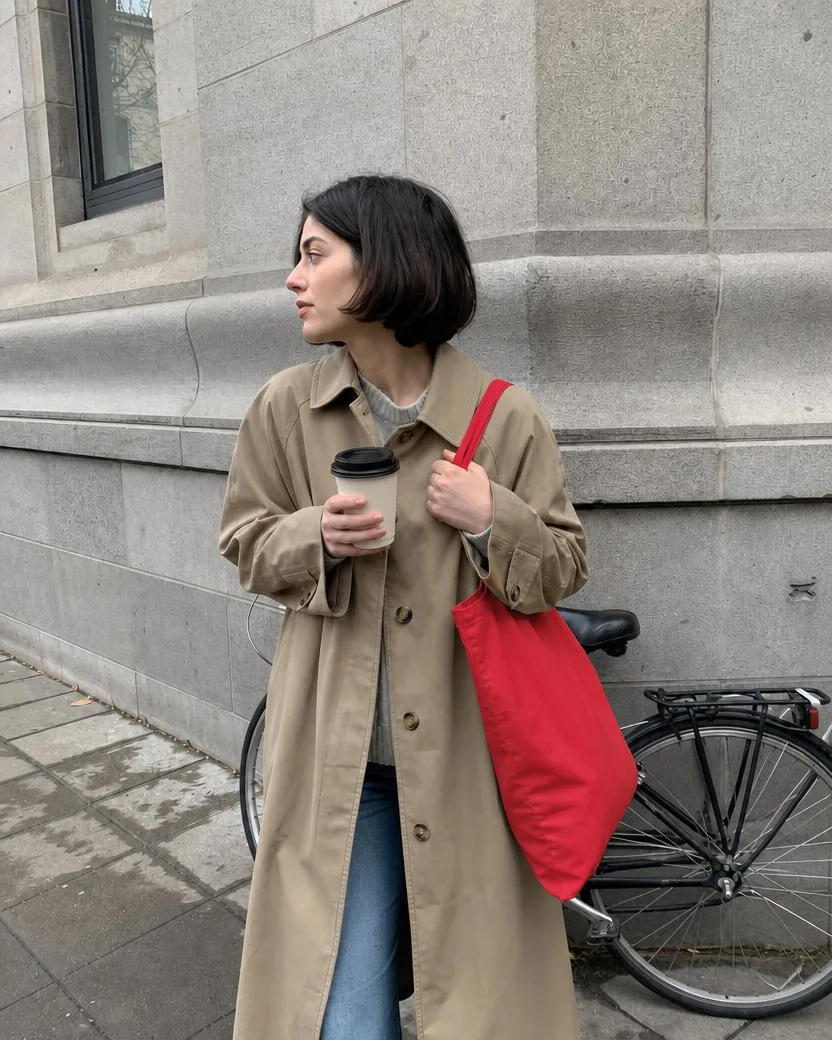
Same photo, red bag

A second colourway from one street photo. The bag turns red with its folds and the light on it kept; the coat, the coffee, the face, and the street stay exactly as shot. The 100% crop of the face is the check for any photo with a person in it.

DirectionMake the tote bag red.
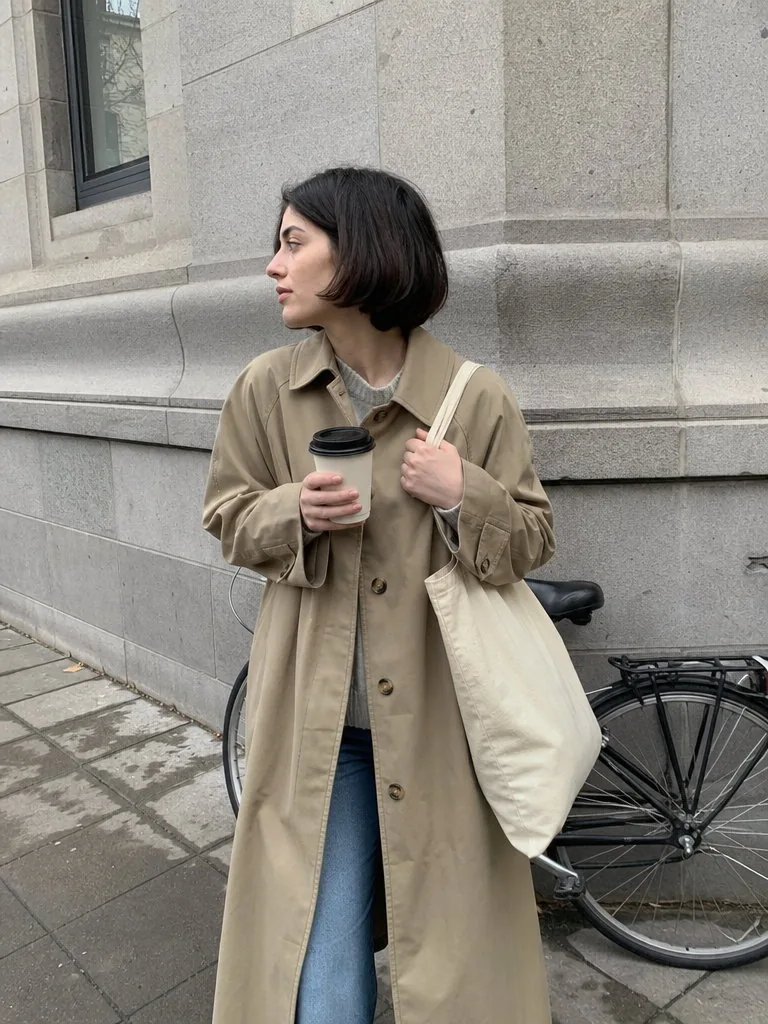
Candid phone photo of a young woman with a short dark bob in a beige trench coat and jeans on a city pavement, holding a plain canvas tote bag and a coffee cup, with a grey stone building and a parked bicycle behind her
Uploaded photo
The same street photo with the tote bag now bright red: the woman, her trench coat, her coffee, the stone building, and the bicycle behind her exactly as before
Variation
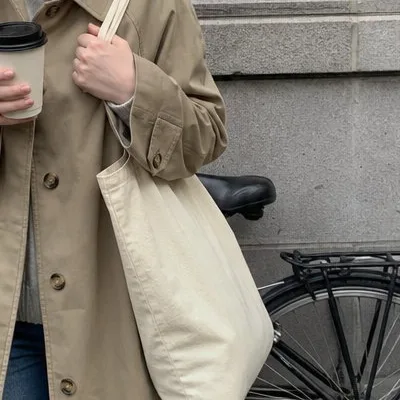
Close crop of the uploaded photo at 100%, on the detail that had to stay the same
Upload, 100% crop
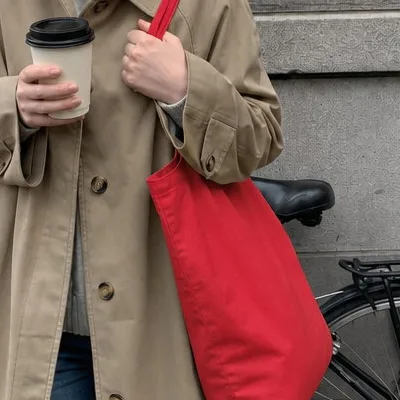
Close crop of the variation at 100%, on the detail that had to stay the same
Variation, 100% crop
Food and table photos

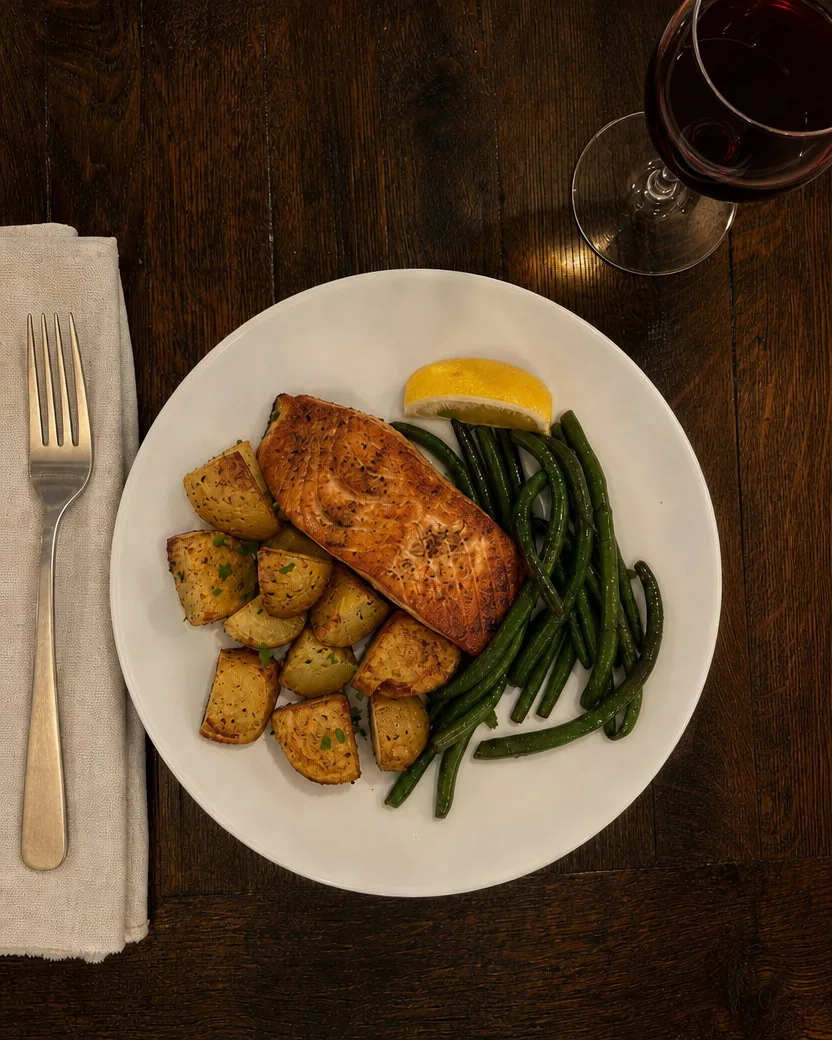
White wine to red, plate untouched

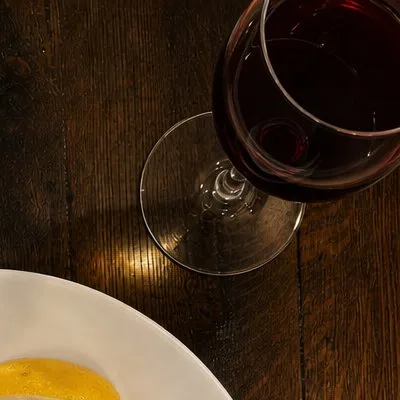
One object swapped, everything else left alone. The glass keeps its place and its reflections and simply holds red wine; the plate is untouched, which the 100% crop of the salmon shows.

DirectionSwap the white wine for a glass of red wine.
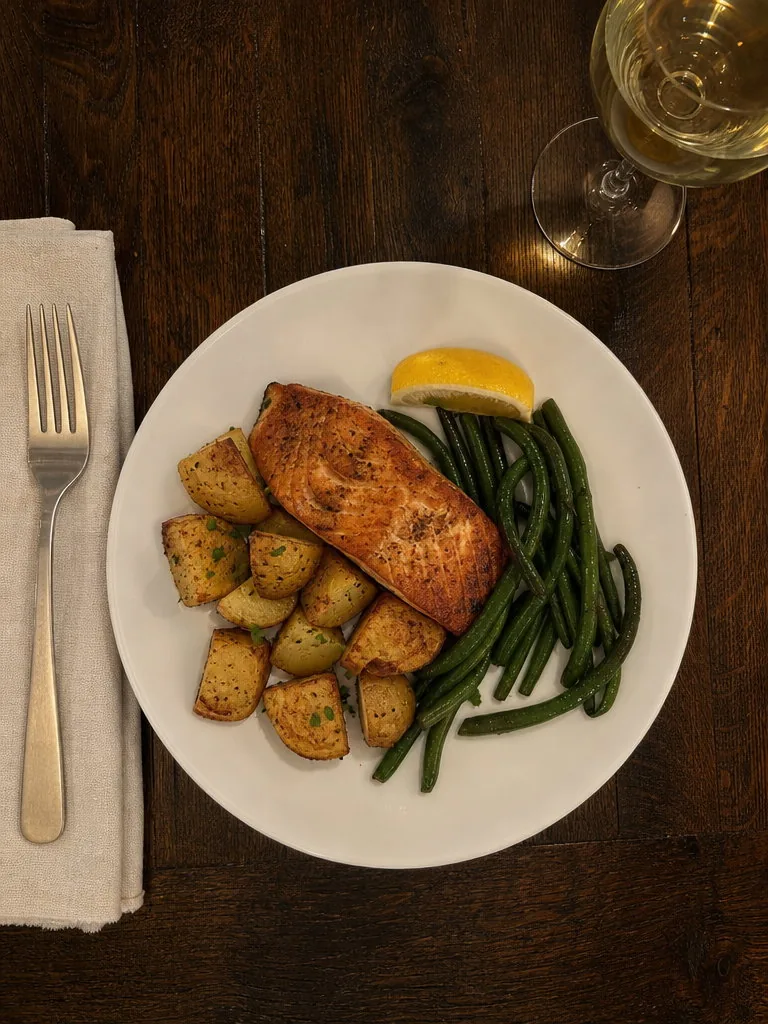
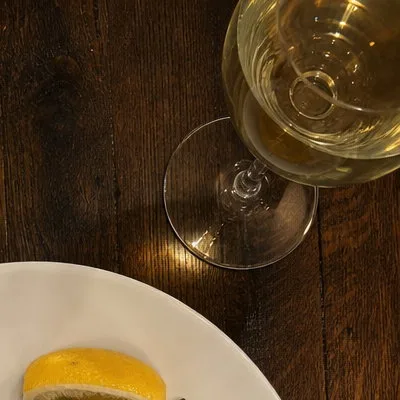
Phone photo looking down at a restaurant plate of pan-fried salmon with roast potatoes, green beans, and a lemon wedge, a glass of white wine, a used fork, and a napkin on a dark wooden table under warm light
Uploaded photo
The same restaurant plate with a glass of red wine where the white wine was: the salmon, the roast potatoes, the green beans, the lemon, the fork, and the napkin untouched on the dark table
Variation
Close crop of the uploaded photo at 100%, on the detail that had to stay the same
Upload, 100% crop
Close crop of the variation at 100%, on the detail that had to stay the same
Variation, 100% crop
Product and packaging photos

New surface, same bottle, same label

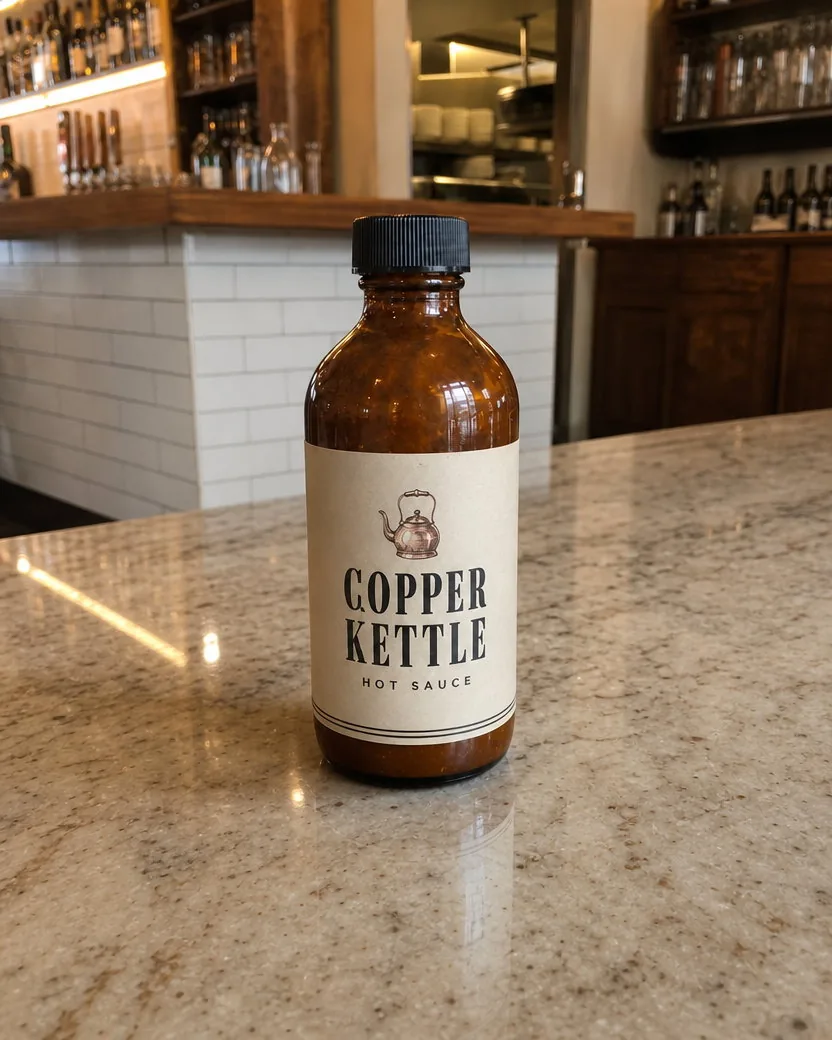
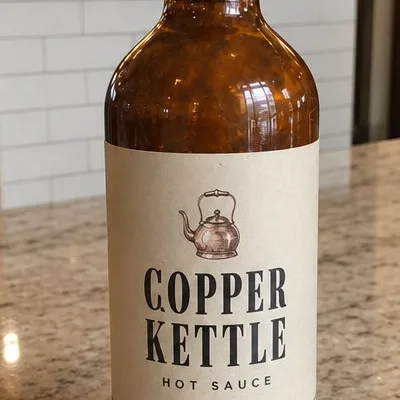
A restaurant’s own hot sauce, photographed on a table between services and turned into a cleaner product shot with one sentence: the bottle moves to the marble bar and the glass and napkin go, while the bottle itself, its cap, and every word on its label stay put. Check the label crop at 100% before you use it.

DirectionPut the bottle on the marble bar counter, with no glass or napkin.
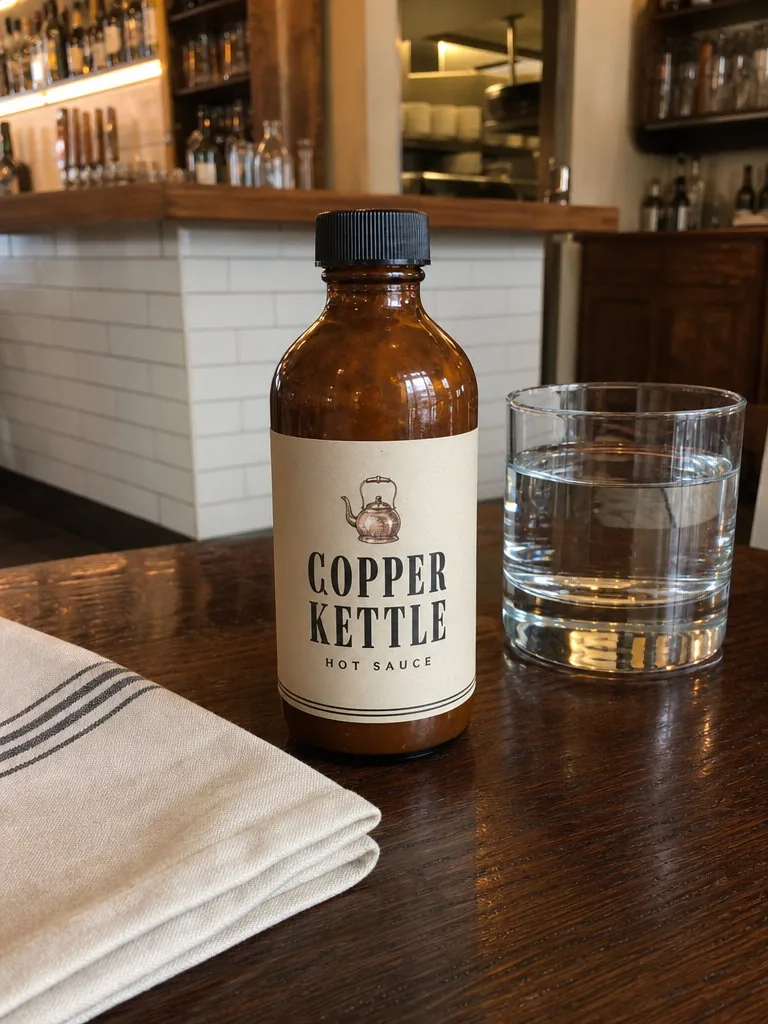
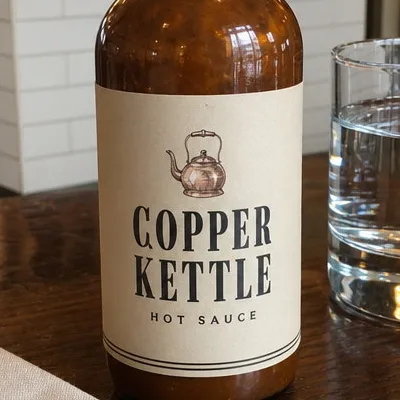
Phone photo of a brown glass hot sauce bottle with a cream paper label reading COPPER KETTLE · HOT SAUCE standing on a dark wooden restaurant table beside a folded napkin and a water glass, the bar softly behind
Uploaded photo
The same hot sauce bottle standing on the restaurant’s marble bar counter, the napkin and glass gone, the label still reading COPPER KETTLE, the bar shelves behind it unchanged
Variation
Close crop of the uploaded photo at 100%, on the detail that had to stay the same
Upload, 100% crop
Close crop of the variation at 100%, on the detail that had to stay the same
Variation, 100% crop

How to write the instruction

The direction field is optional. When you use it, these four habits get the most out of it.

  • Name the thing and what it becomes

    “Change the sofa to navy.” “Swap the coffee for a glass of wine.” “Make the door green.” A thing and what it becomes is enough. “Make it nicer” gives the tool nothing to hold on to.

  • One change per run

    Each run makes one change well. For a second change, run the result again with the next instruction; the earlier change stays in place.

  • Do not describe the photo

    Everything you leave out stays as it is; that is the whole point. Describe only the change, not the photo, and do not add “keep everything else the same”, the tool already does.

  • Quote the exact words for signs

    For a sign or a label, put the new words in quotes and keep them about as long as the old ones. Long sentences on a small sign are where AI editors still struggle.

What it will not do

  • Touch what you did not mention

    It changes only what you name and what that change would really affect: a shadow, a reflection, the light a lamp throws. Faces, hands, the room, the rest of the outfit, and the framing come back as they were.

  • Move the camera or re-crop

    The frame, the crop, and the camera position stay exactly as shot. A different angle of the same scene is a different tool; this one edits the picture you already have.

  • Restyle the whole photo

    A phone snapshot comes back as a phone snapshot with one thing changed, not a magazine shot. No relighting, no colour grade, no beauty filter, no added text unless you ask for it word for word.

Output settings

Everything is set in the composer before you create. Defaults are shown first.

InputOne photo; JPEG, PNG, WebP, or HEIC
FrameThe result keeps the upload's frame, crop, and camera position; nothing is re-cropped or re-shot
Aspect ratio4:5 by default; any supported ratio under Settings, with the surroundings extended rather than the photo cropped when it differs from the upload
Resolution1K by default; 2K and 4K available on GPT Image models
DirectionOptional. One change in plain words; blank lets the tool choose one big change that fits the photo
OutputOne image per upload by default; ask for 2 to 10 variations in the direction field and each gets its own change, downloadable from your library without a watermark

Made with this tool

Recent public posts from the community, created with this tool.

Frequently asked questions

What kinds of photos work with the AI image variation generator?

Rooms, houses, people, products, food, pets, gardens, streets, and most other photos. Ordinary phone photos are the normal input; every example on this page started as one. The tool reads the photo, makes the change you name, and keeps everything else as it was.

What counts as a variation here?

The same photo with one thing different. A book becomes a newspaper, a bag turns red, summer turns to winter, the white wine becomes red, the table becomes marble. The frame, the crop, the camera, the light, and the people stay as they were. It is not a remix, a restyle, or a new angle.

What happens if I type nothing?

The tool picks one big change that fits the photo and would be useful to its owner: a house at another season or at dusk, a garment in another colour, a different drink or prop, a restyled bed or table, a different toy for a pet. It makes one change, keeps it believable, and never touches faces or the camera. If you would rather steer it, type the change.

Can I replace or remove an object in a photo?

Yes. “Change the book to a newspaper”, “swap the coffee for a glass of wine”, “remove the napkin” all work, and the replacement is placed where the old object was, held or standing the same way, with its own shadow and reflection. Text on the new object is only written when you quote it.

Create
  • Tools
Settings
Aspect ratio
Resolution
Duration
Model
Upload failed

One or more selected files can’t be uploaded. Please upload different files, or change the format.