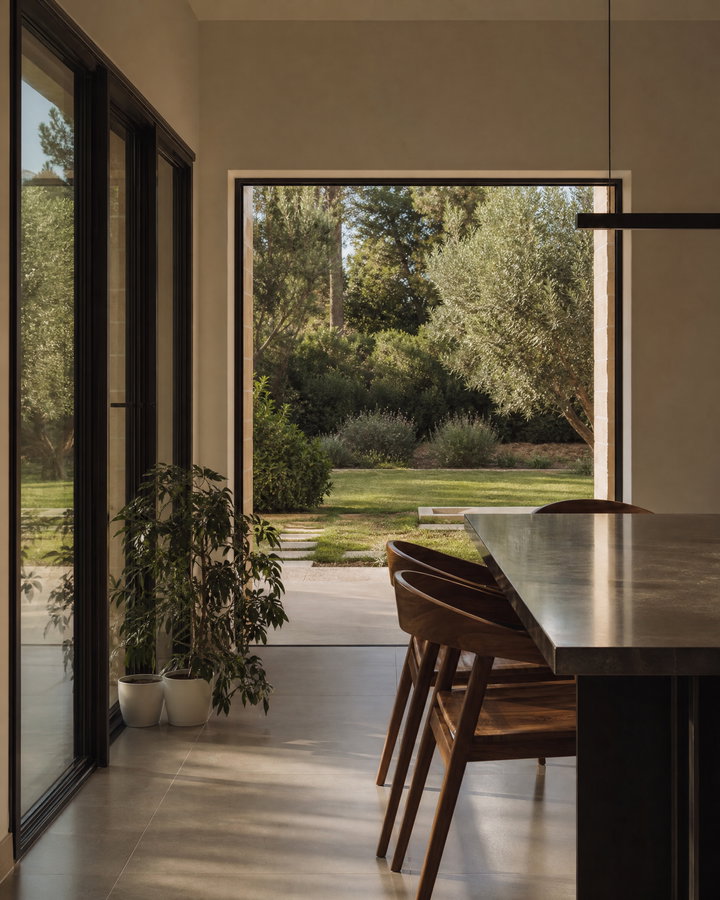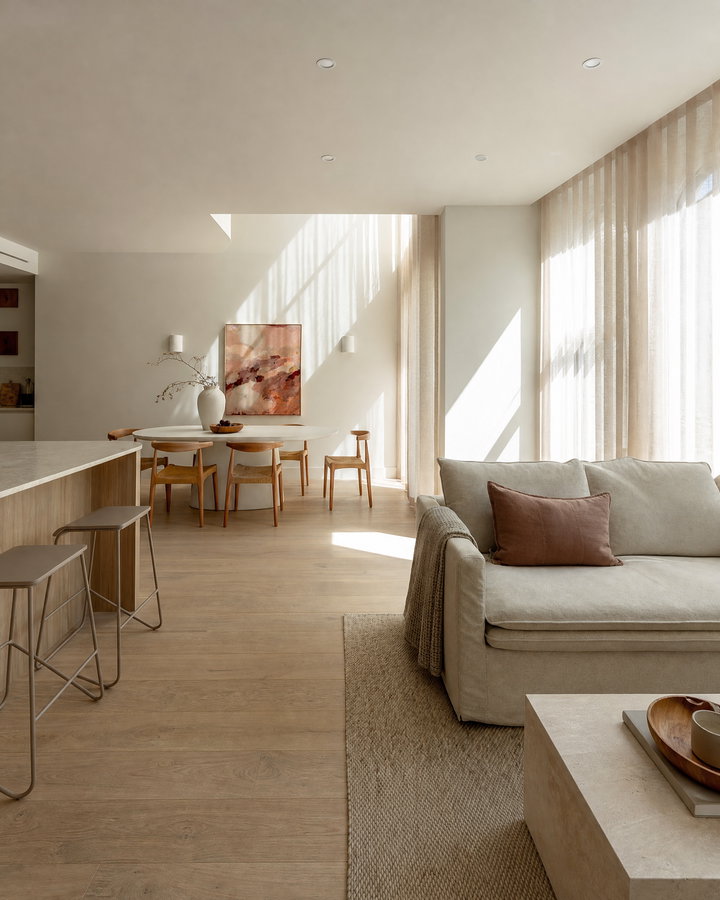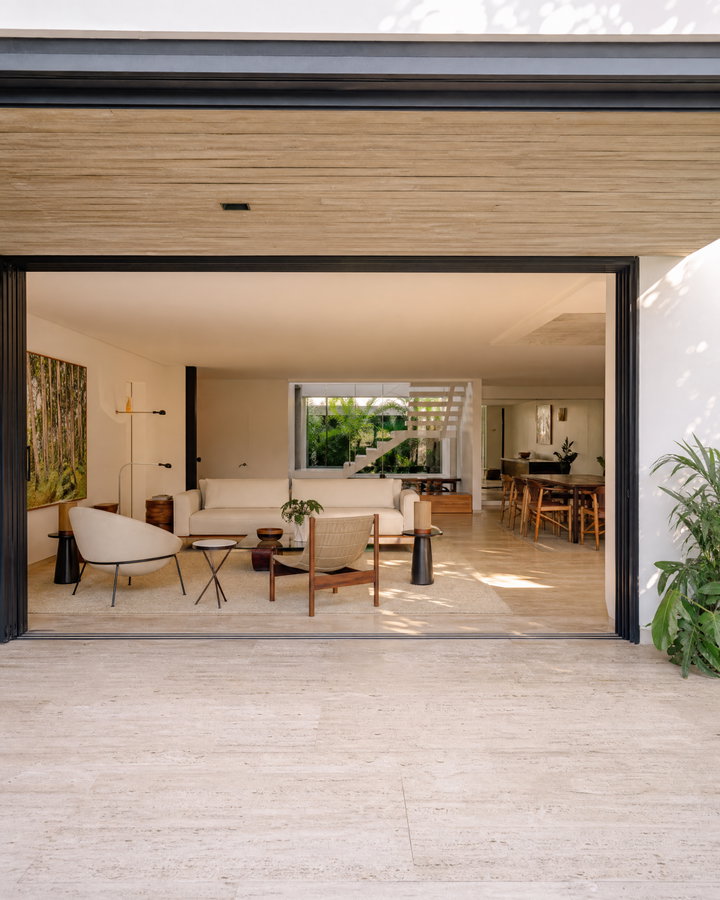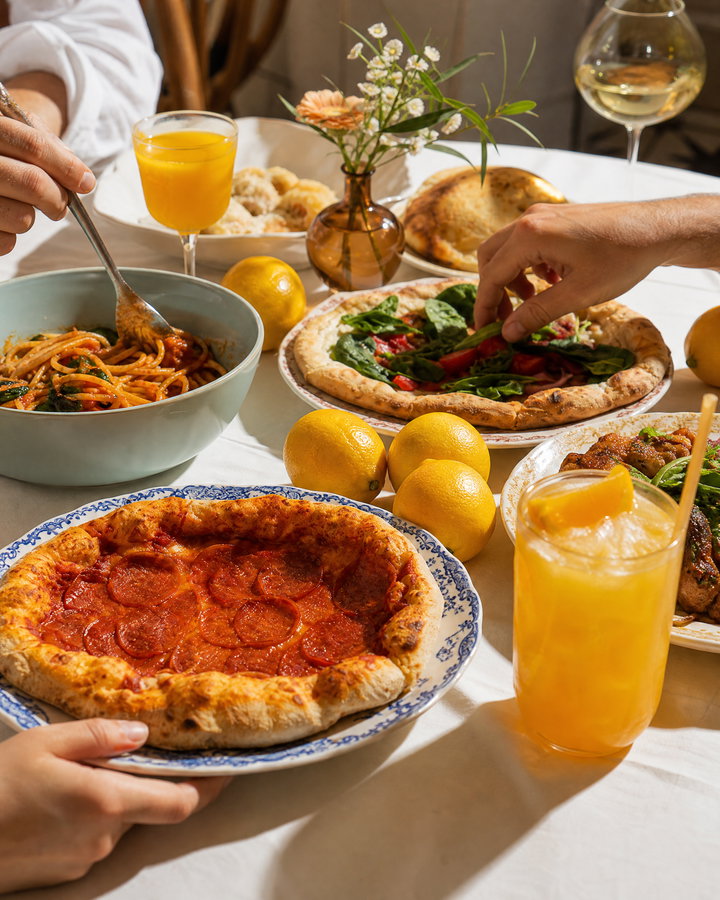
Interior and real estate photos
Down to the worktop
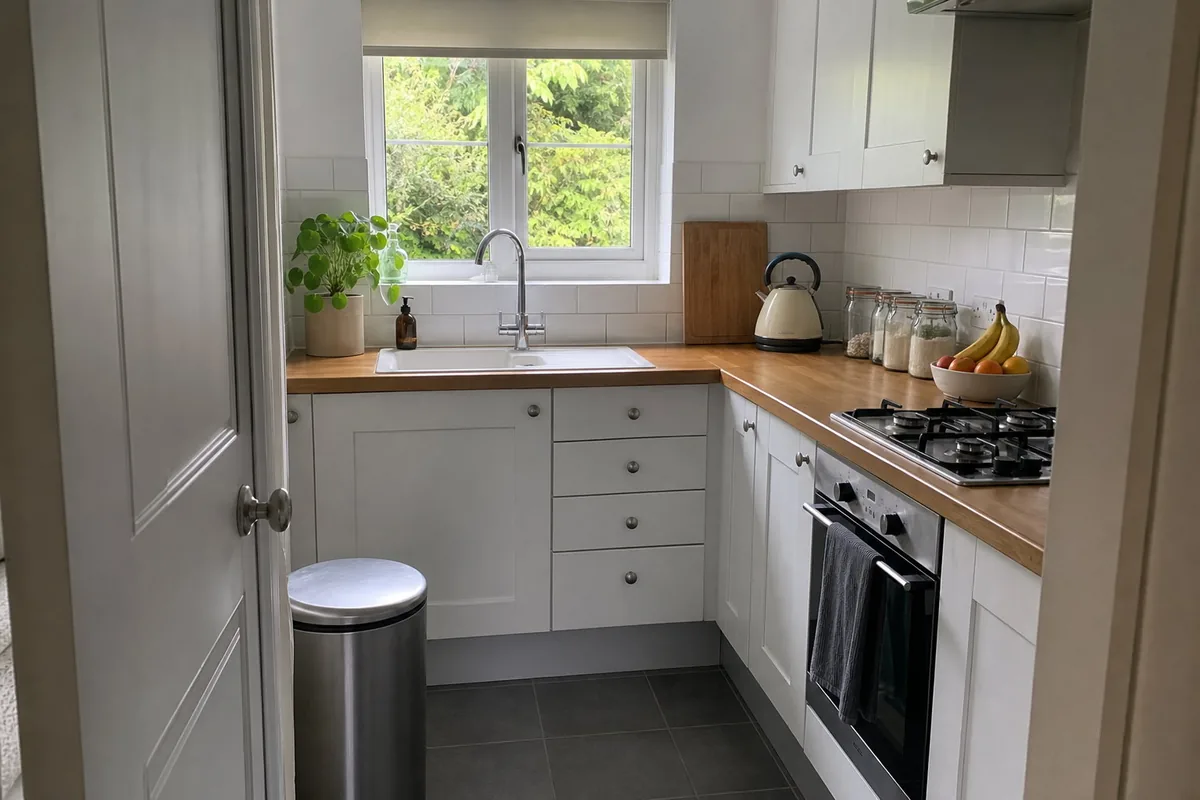
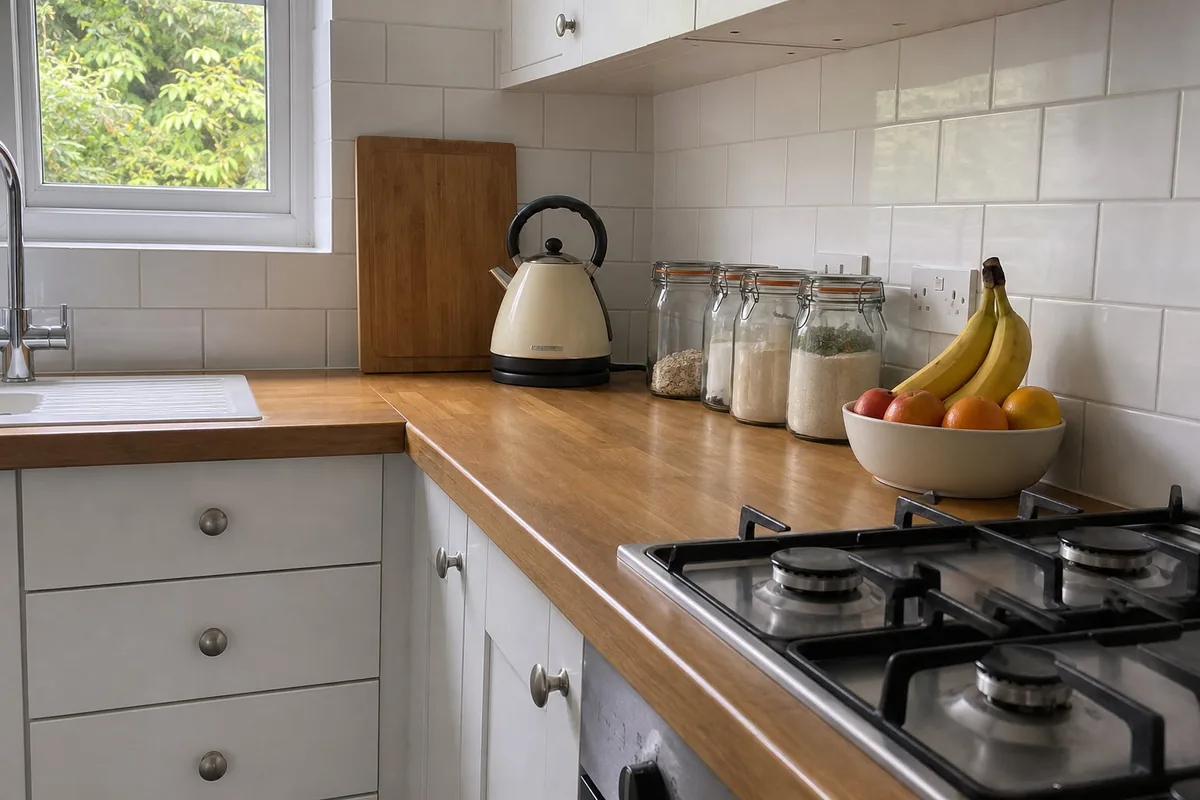
DirectionLower, from worktop height, closer to the kettle.
A galley kitchen photographed from its dining end, held level. The direction was one sentence, and the result is the same kitchen seen square-on from across the room: the walnut cabinets, the white worktop, the black tap, the lit strip under the taupe uppers and the oven column exactly where they were, now as a straight elevation.
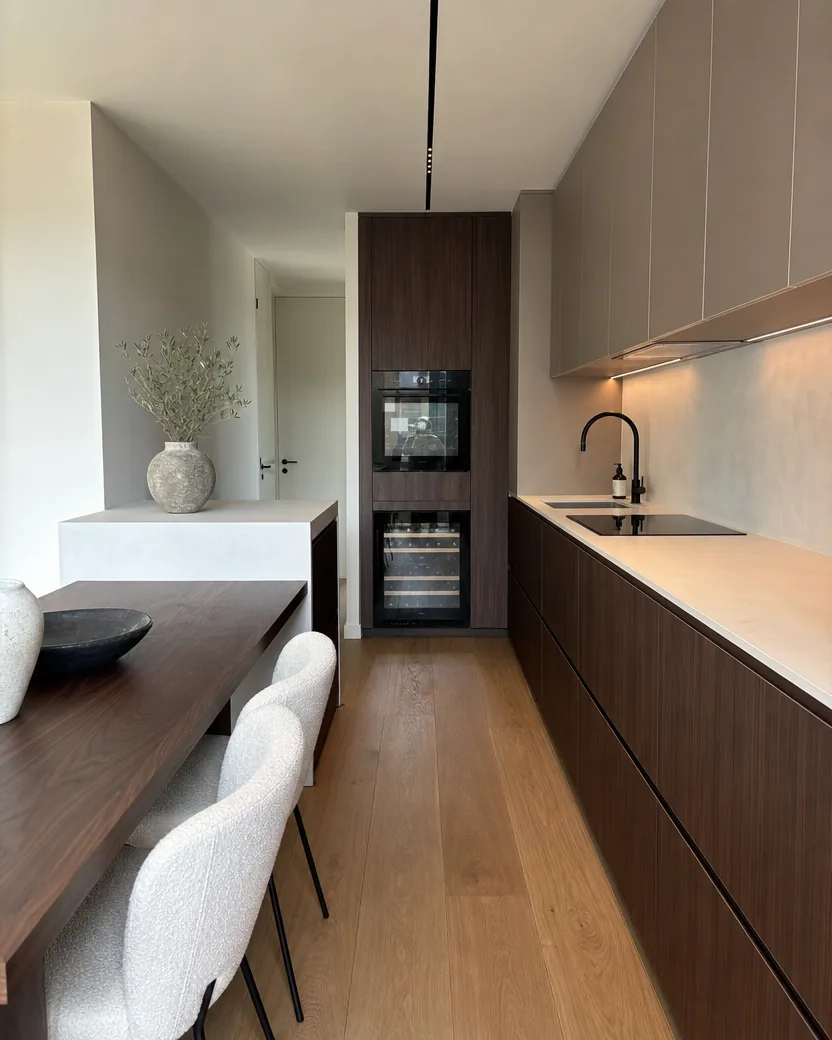
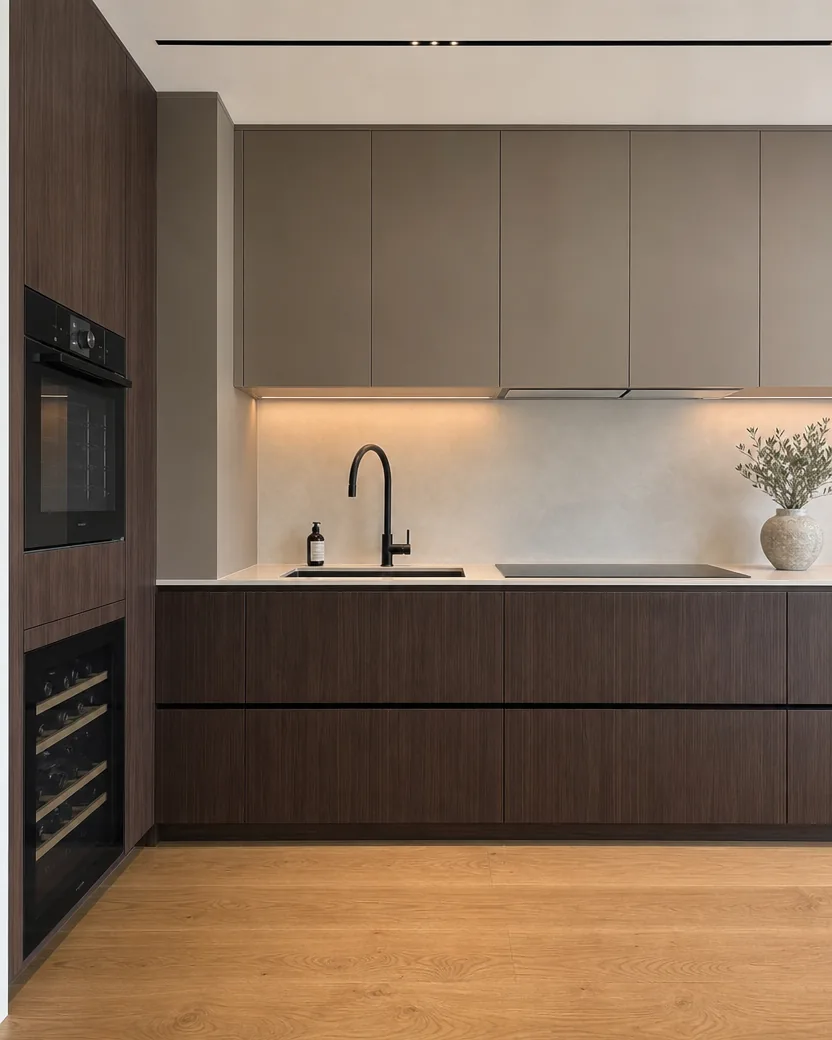
DirectionStand across from the sink and face the kitchen wall straight on, camera level at counter height.
Each pair shows the upload next to the result. The line under it is exactly what was typed, or nothing at all: with nothing typed, the tool picks a bold move of its own.
DirectionLower, from worktop height, closer to the kettle.
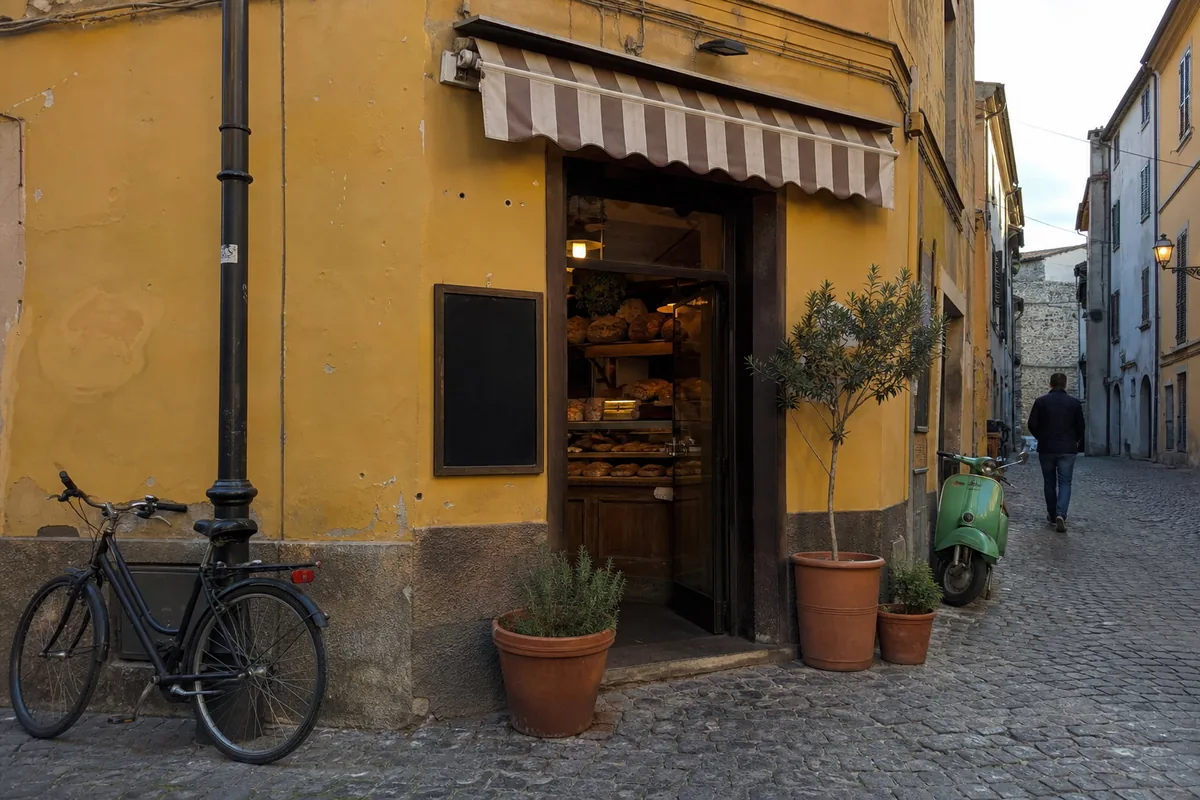
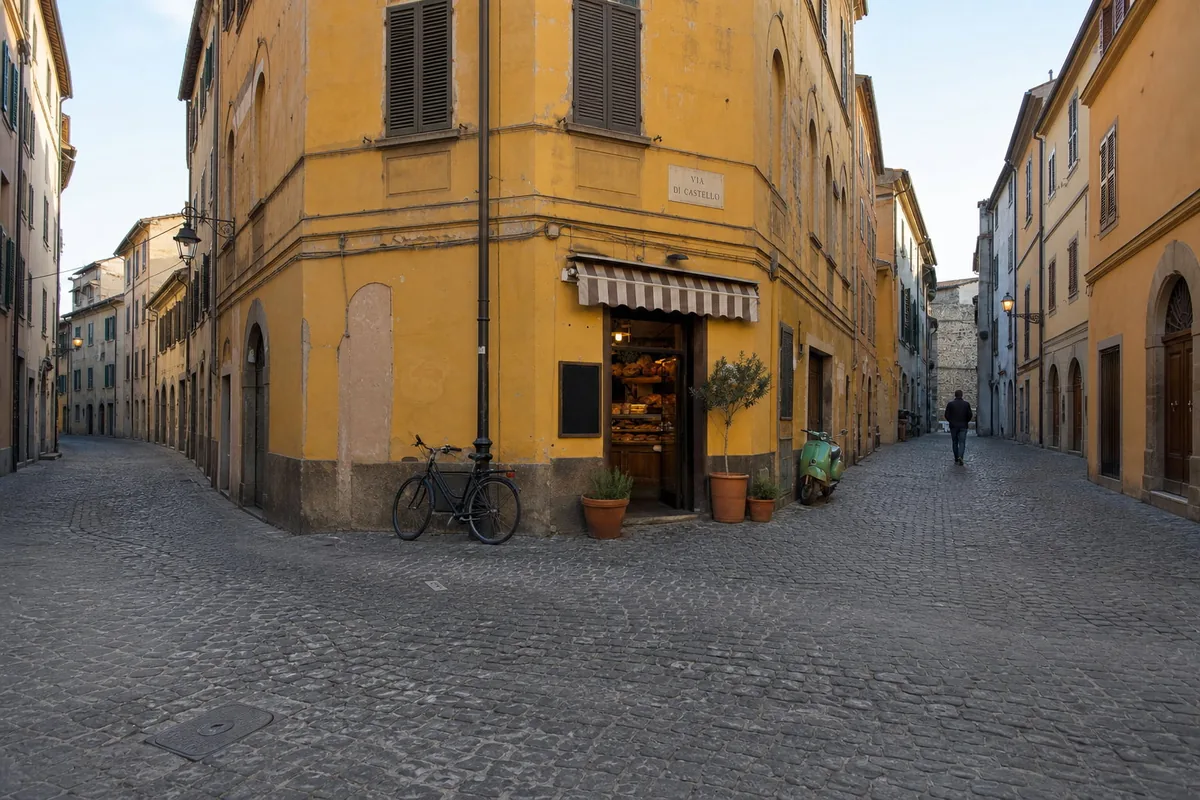
DirectionFrom across the street, further back, looking at the bakery.
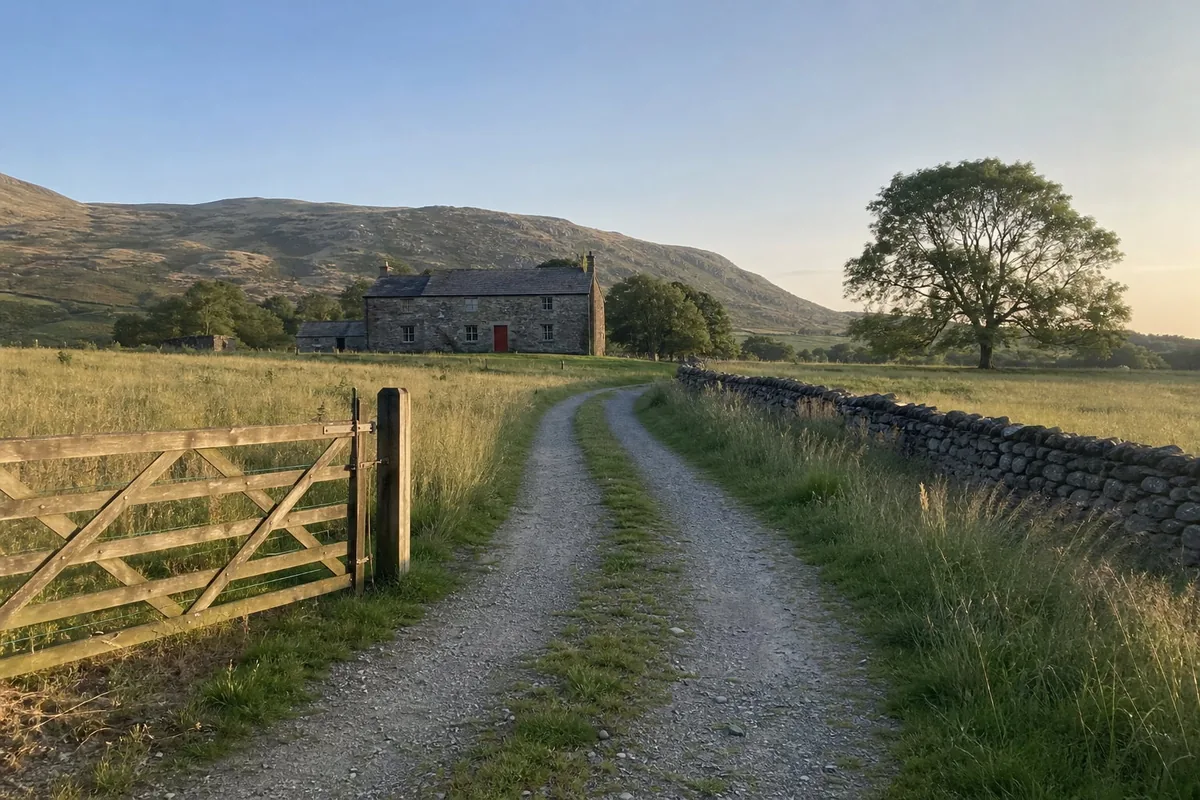
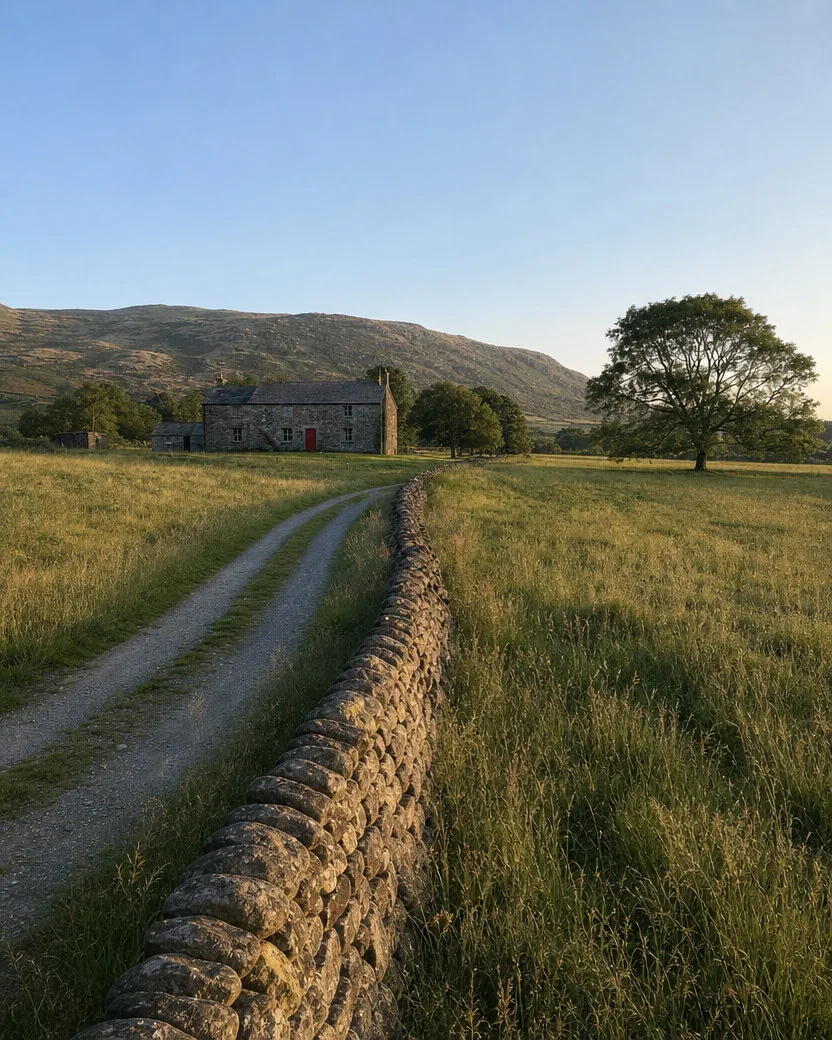
Nothing typed: the tool chose the camera move
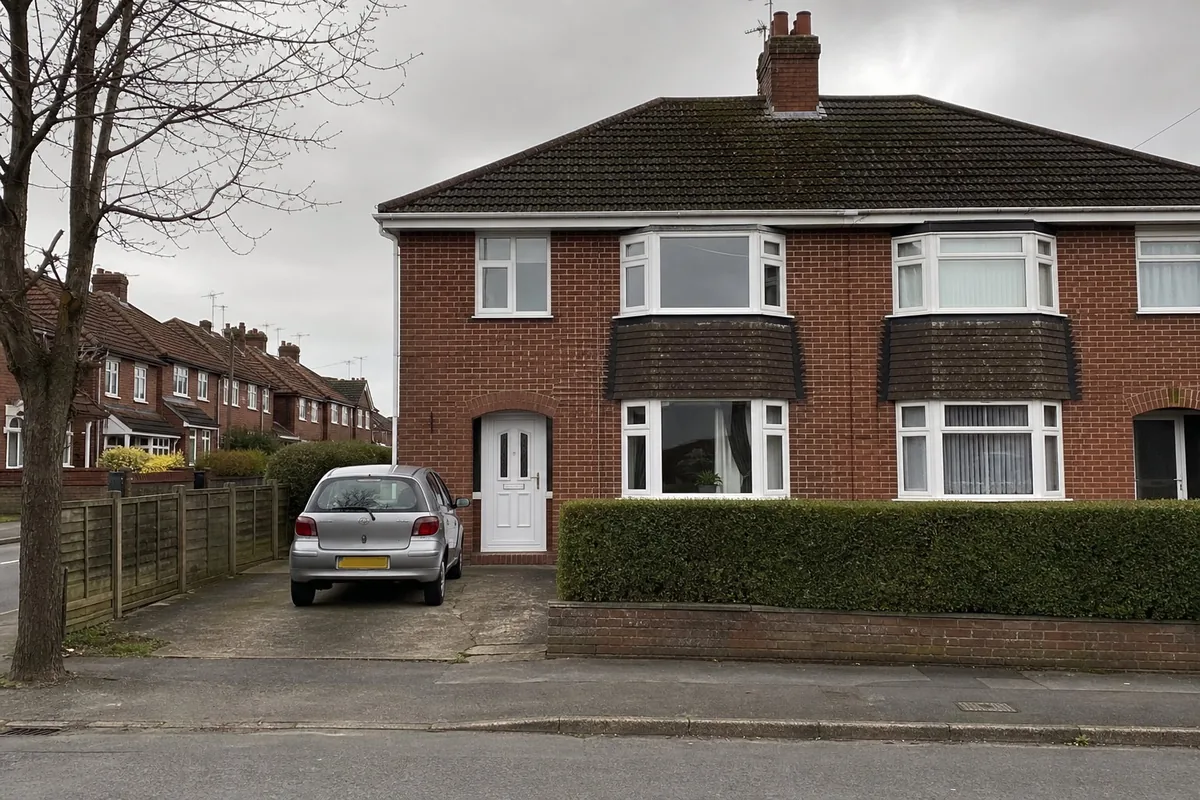
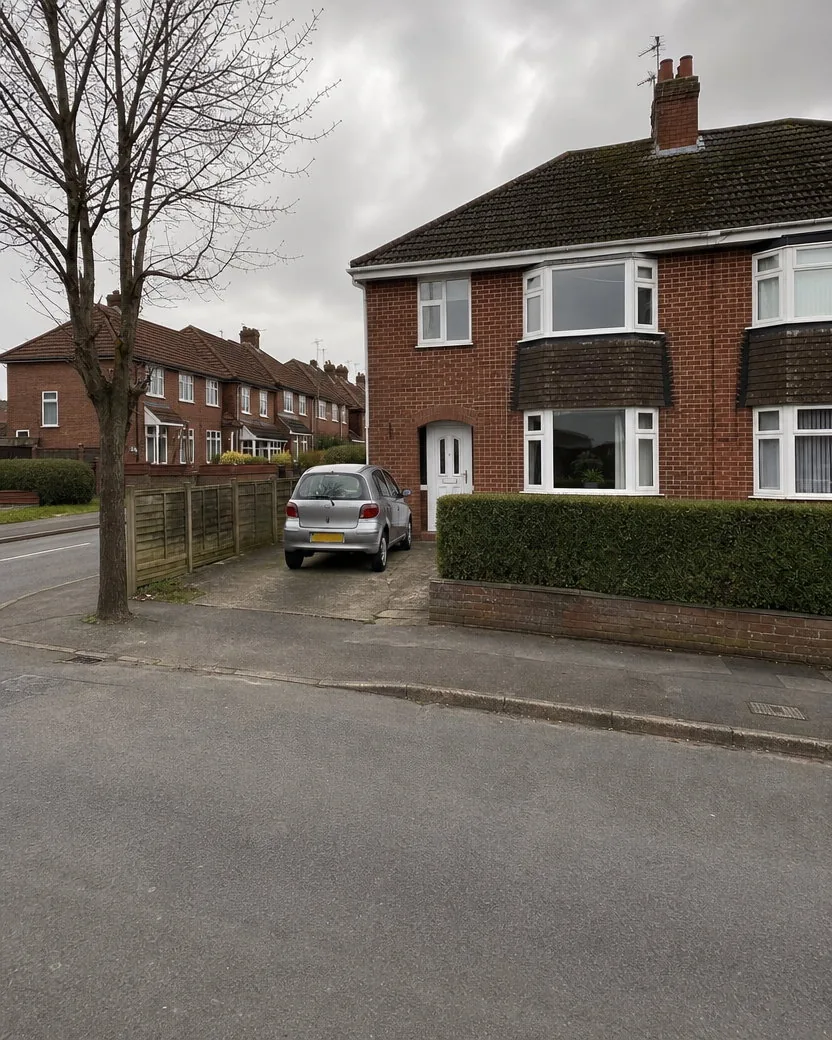
Nothing typed: the tool chose the camera move
Three steps, no 3D model, no sliders. The private camera contract keeps the scene, the people, and the text exactly as photographed while it moves the camera.
A phone photo of a room, a house, a person, a product, a street, a landscape, a pet.
Say where the camera should go: “orbit left”, “closer, from a low angle”, “higher, looking down”, “from the doorway”, “from across the street, further back”. One sentence is enough. Or type nothing and let the tool choose the move.
The new angle is ready in one to two minutes, 4:5 by default, made with GPT Image 2. Download it from your library, or run the same photo again with another move.
Three more photos, each shown with the upload, the result, and a 100% crop of the part that had to stay identical: a face, a label, a dog's eyes.
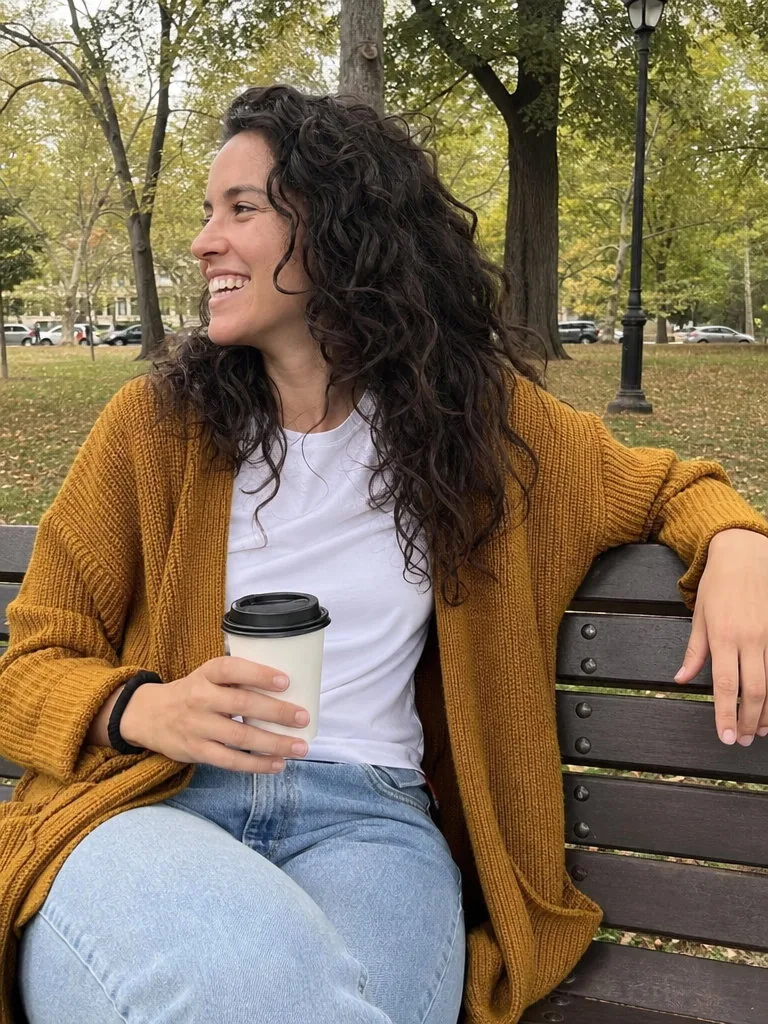
A second angle of a moment that only happened once. The face, the laugh, the cardigan, and the cup are the same; the 100% crop of the face shows the same person from the new angle.
DirectionOrbit to her left side and go lower, looking up at her.
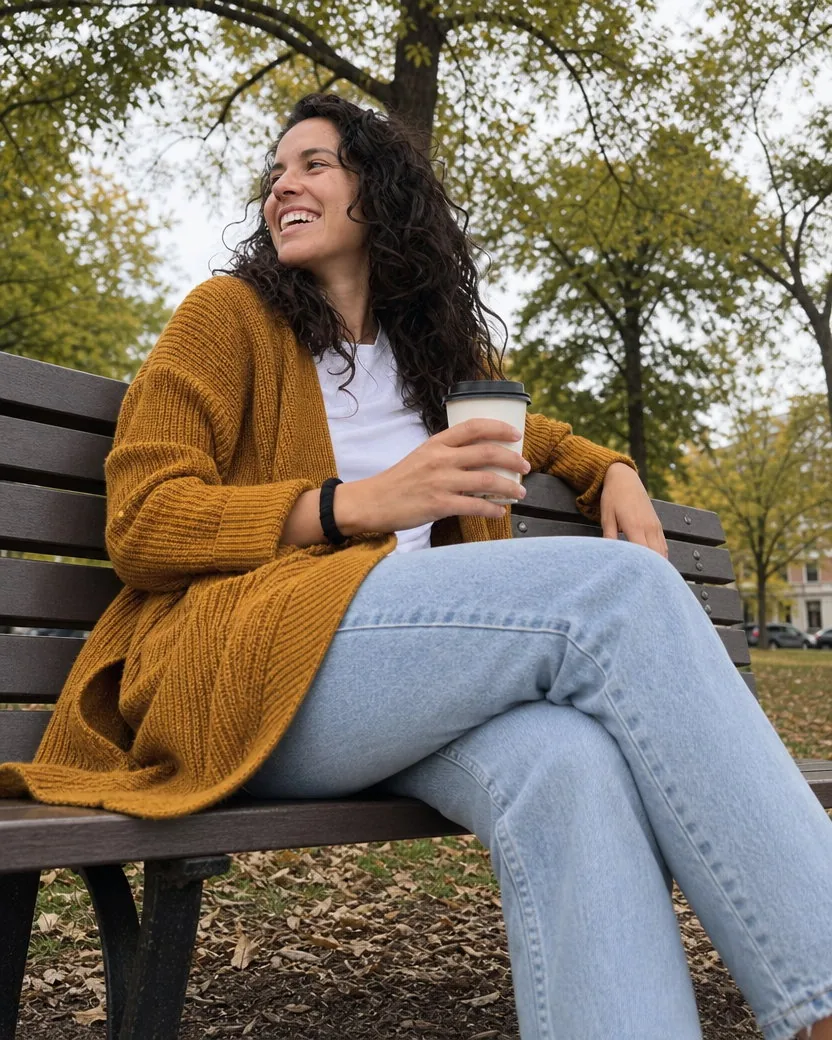
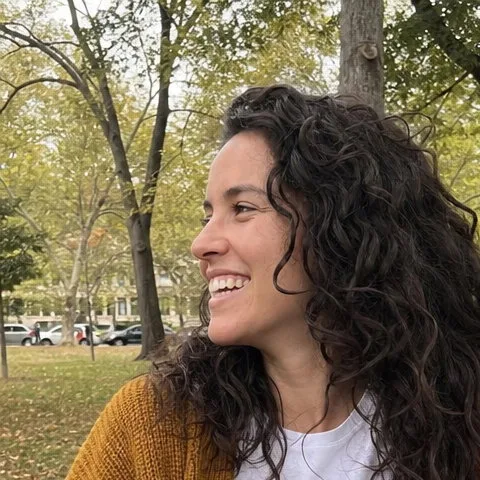
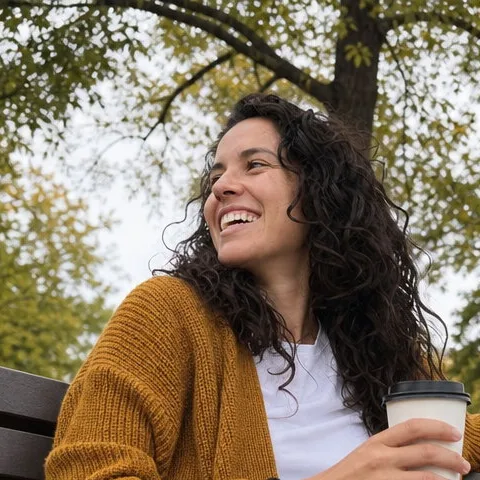
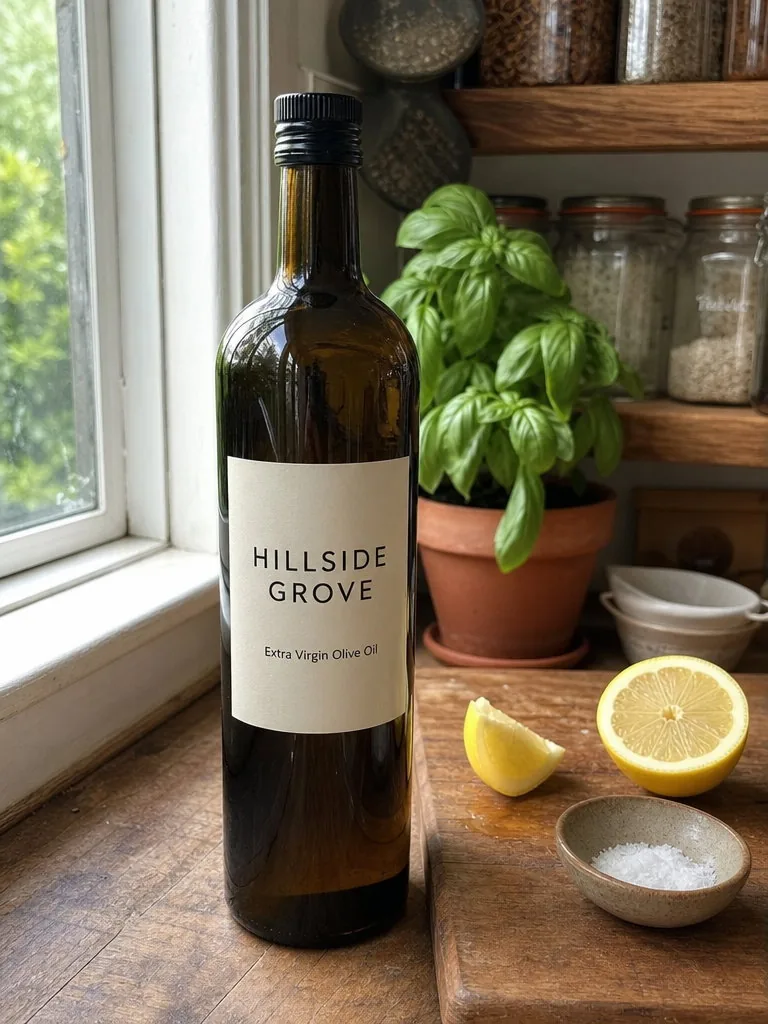
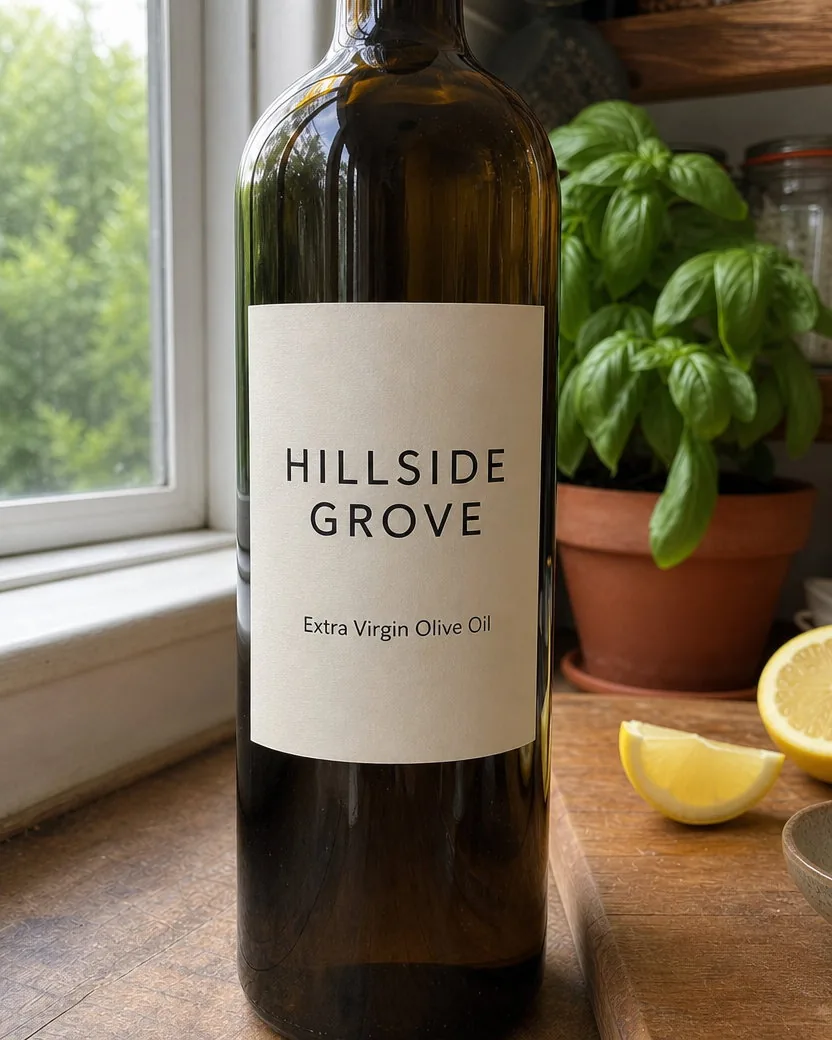
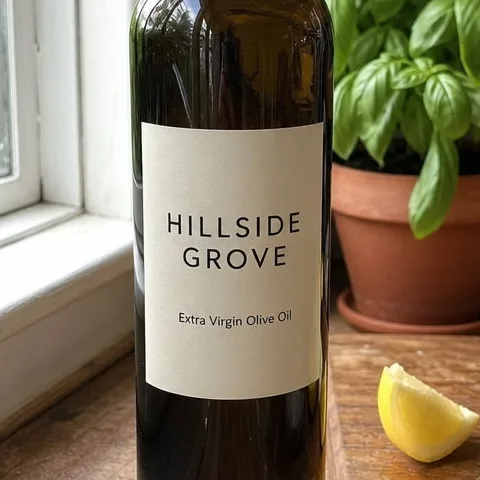
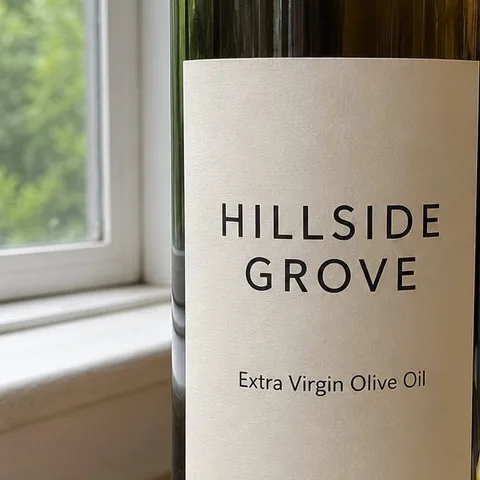
A second product angle without a reshoot. The camera comes in close and drops to label height so the bottle fills the frame, and the 100% crop shows the label reading the same, character for character, in the same typeface.
DirectionCome in close and low, right in front of the bottle, so the whole bottle from the cap to the base fills the frame with the label large and readable.
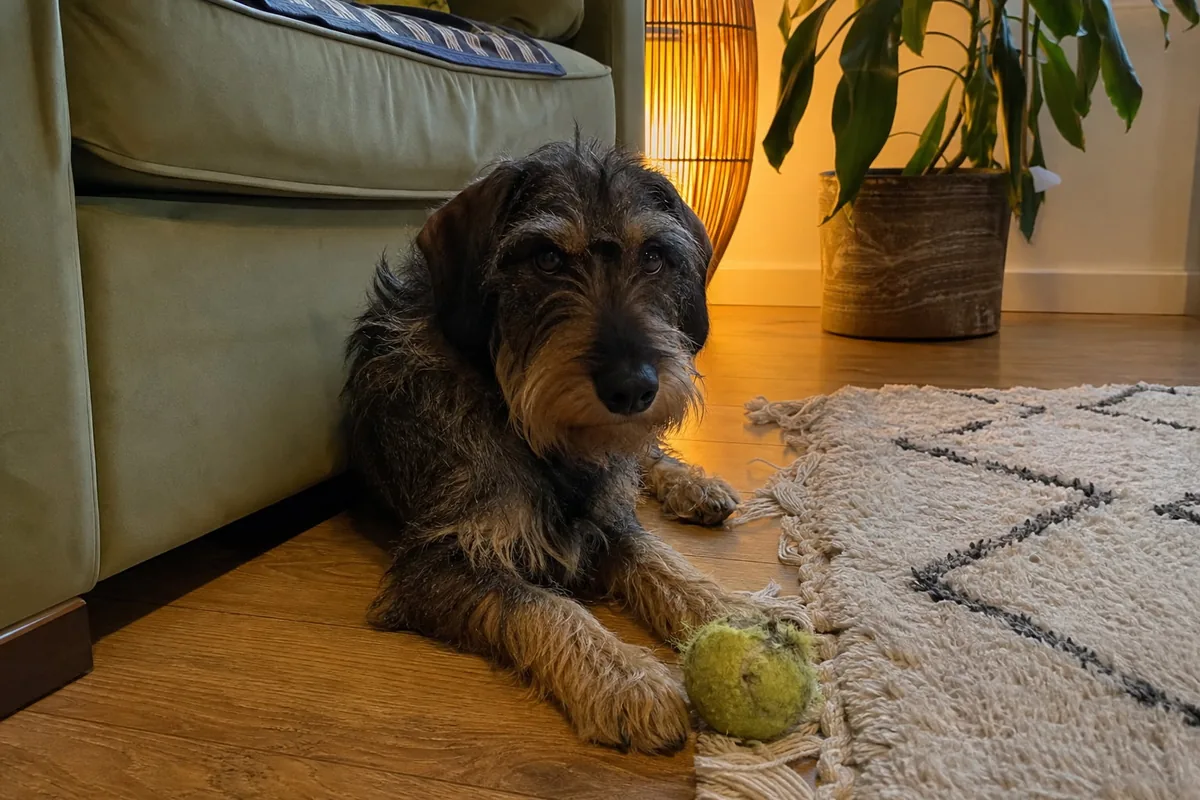
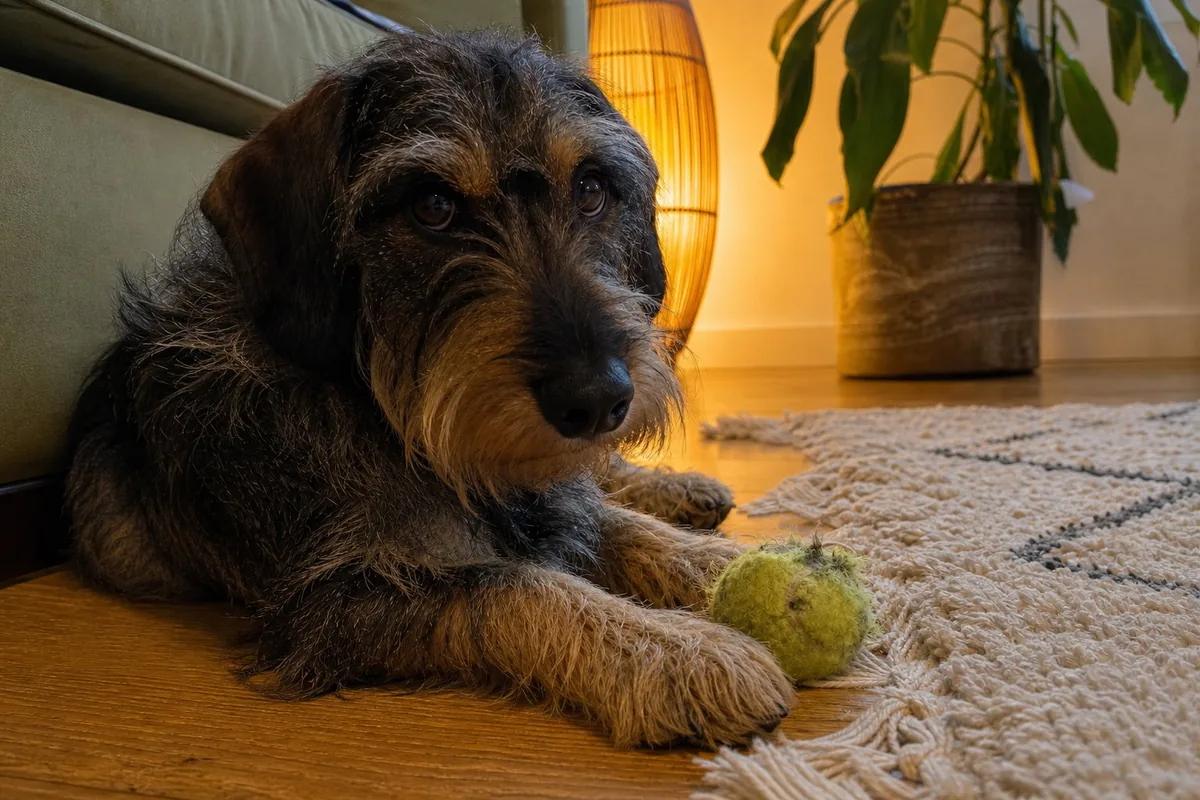
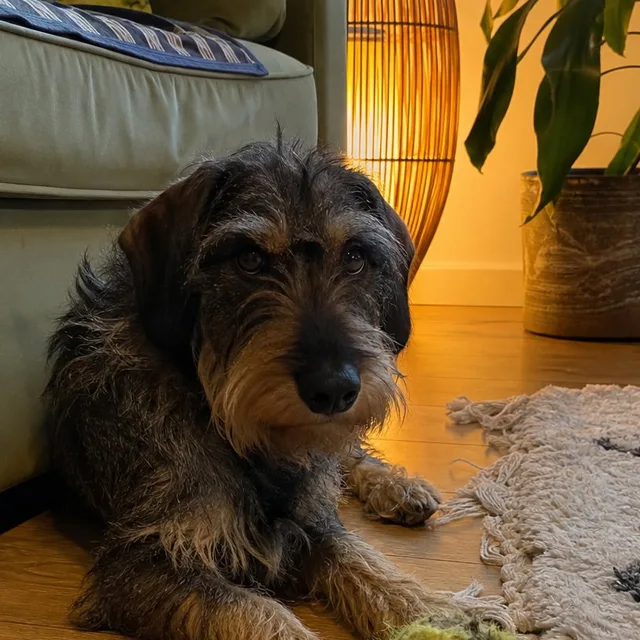
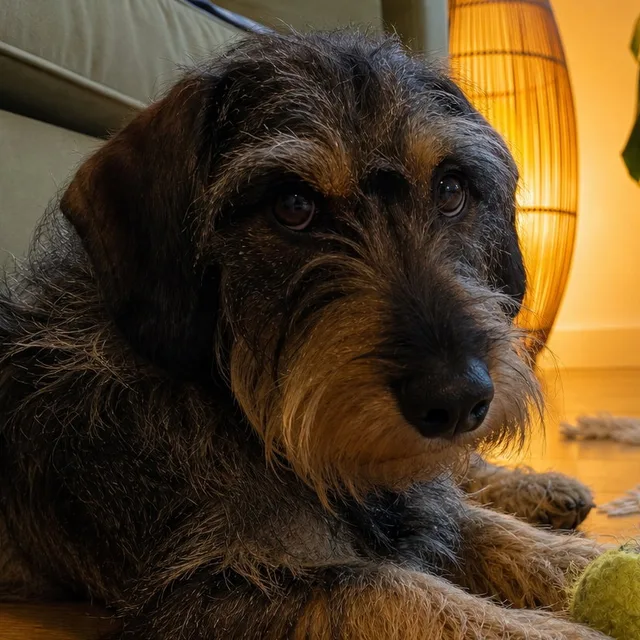
A pet portrait from the floor without lying on it. The dog, its ball, and the room stay where they were; the 100% crop of the eyes shows the same dog looking back.
DirectionFrom the floor at the dog's eye level, closer, orbiting to its left.
The direction field is optional. When you use it, these four habits get the most out of it.
“Orbit left.” “Closer, from a low angle.” “Higher, looking down at the table.” “From the doorway.” A direction and, if you like, a distance or a height is enough; “a nicer angle” gives the tool nothing to do.
“From the window side, looking across the sofa toward the door” is the most reliable kind of direction: the tool stands there and looks back, even when that shows the wall the photo was taken from.
Every move reveals something the photo did not show, and it is continued plainly. A move that keeps most of the scene in view (an orbit, a change of height, a step closer) looks more convincing than one that turns the camera to a bare wall.
Each run makes one move. For a second angle of the same photo, run the upload again with another direction, or ask for “three angles: one from the left, one from the right, one from above” and each gets its own move.
No furniture, art, plants, windows, or signs appear on a wall the photo never showed. A surface that comes into view is a plain continuation of what is there: the same brick, the same paint, a bare worktop, an empty hallway.
A word like “winter”, “red”, or “smile” in the direction is left undone; only the camera part is carried out. Editing what is in the picture is the AI image variations tool.
A re-crop or an enlargement of the same pixels is a failure by contract. Every result recomputes the perspective for the new position, so things at different depths shift against each other and new sides come into view.
Everything is set in the composer before you create. Defaults are shown first.
| Input | One photo; JPEG, PNG, WebP, or HEIC |
|---|---|
| Move | Orbit left or right (35 to 90 degrees), closer or further (half or double the distance), higher or lower, or a named spot in the scene; combinations allowed |
| Aspect ratio | 4:5 by default; any supported ratio under Settings, with the scene extended rather than cropped when it differs from the upload |
| Resolution | 1K by default; 2K and 4K available on GPT Image models |
| Direction | Optional. One camera move in plain words; blank lets the tool choose one bold move that fits the photo |
| Output | One image per upload by default; ask for 2 to 10 angles in the direction field to get several, downloadable from your library without a watermark |
Recent public posts from the community, created with this tool.
Rooms, houses, people, products, food, pets, landscapes, and streets; ordinary phone photos are the normal input and every example on this page started as one. Photos with one clear scene and some depth (a room with a far wall, a street, a person in a place) give the most convincing moves. A flat wall, a screenshot, or a tightly cropped object gives the tool little geometry to work with.
The same scene at the same instant photographed from somewhere else. The people, their outfits, the furniture, the light, and the label text stay; the camera's position, height, and distance change, so things at different depths shift against each other and new sides come into view. It is not a crop, a zoom, or a mirror.
The tool picks one bold move that a photographer would take for that kind of photo: a 45-degree orbit for a person, the opposite end of a room looking back, a step to the side of a house, a walk up the path in a landscape, an orbit around a pet at its eye level. It never changes the season, the light, or anything in the scene.
Yes. Source-visible words, numbers, and logos are copied character for character and shown from the new angle, and no lettering is added to anything that had none. Ask for a move that keeps the label facing the camera, such as “orbit right and come closer, keeping the label readable”. Small print that is already unreadable in the upload stays soft rather than being invented.
Yes: “from the doorway”, “from the window side”, “from behind the counter”, “from the far corner by the bookshelf”. The camera stands at that spot at eye height and looks back at the subject. The living-room example at the top of this page was made that way.
Yes: “from the floor, looking up”, “low angle”, “from above, high angle”, “overhead”, “bird's-eye view”. The horizon and the vertical lines answer the new height. For a room, an overhead view needs a ceiling the photo does not show, so a high corner is more honest than a straight top-down view.
Rooms and houses for listings, when you have one photo of a room and want it from the other end; products, to show the other side or a low three-quarter view without a reshoot; portraits, for a low or high angle of the same moment; storyboards and previsualisation, to try a shot before you move a real camera.
An orbit turns the camera around the subject by 35 to 90 degrees; closer halves the distance or more; further doubles it or more; higher and lower are a clear change of height, from the floor to overhead. A named spot means the camera stands there. The contract treats a result that is hard to tell apart from the upload as a failure, so it never returns a slightly shifted crop.
Every wall, window, door, floor, and object keeps its size and place, and every person keeps their face, outfit, pose, and gaze, as if a second camera had fired at the same instant. What the move reveals is continued plainly from what is visible: the same brick around the corner, the same floor under the camera, a bare counter. Nothing is added, removed, moved, or restyled.
Yes. Every example on this page is the tool's own output, made from the upload beside it with the direction printed under it, and nothing was retouched afterwards. The board pairs use plain phone photos; the use cases add 100% crops of a face, a label, and a dog's eyes so you can check that the detail survived the move.
4:5 portrait by default, or any supported ratio you choose under Settings before you create. When the ratio differs from the upload, the tool extends the scene from the evidence rather than cropping or stretching it.
A move that has to reveal a lot the photo never showed: the back of a house, the room behind the camera, a face turned fully away. The tool continues those surfaces plainly, which is honest but can look bare, and it sometimes lands a shorter orbit than asked. Ask for the move in one sentence, name a spot or a height, and run it again if the first result is too timid.
One or more selected files can’t be uploaded. Please upload different files, or change the format.