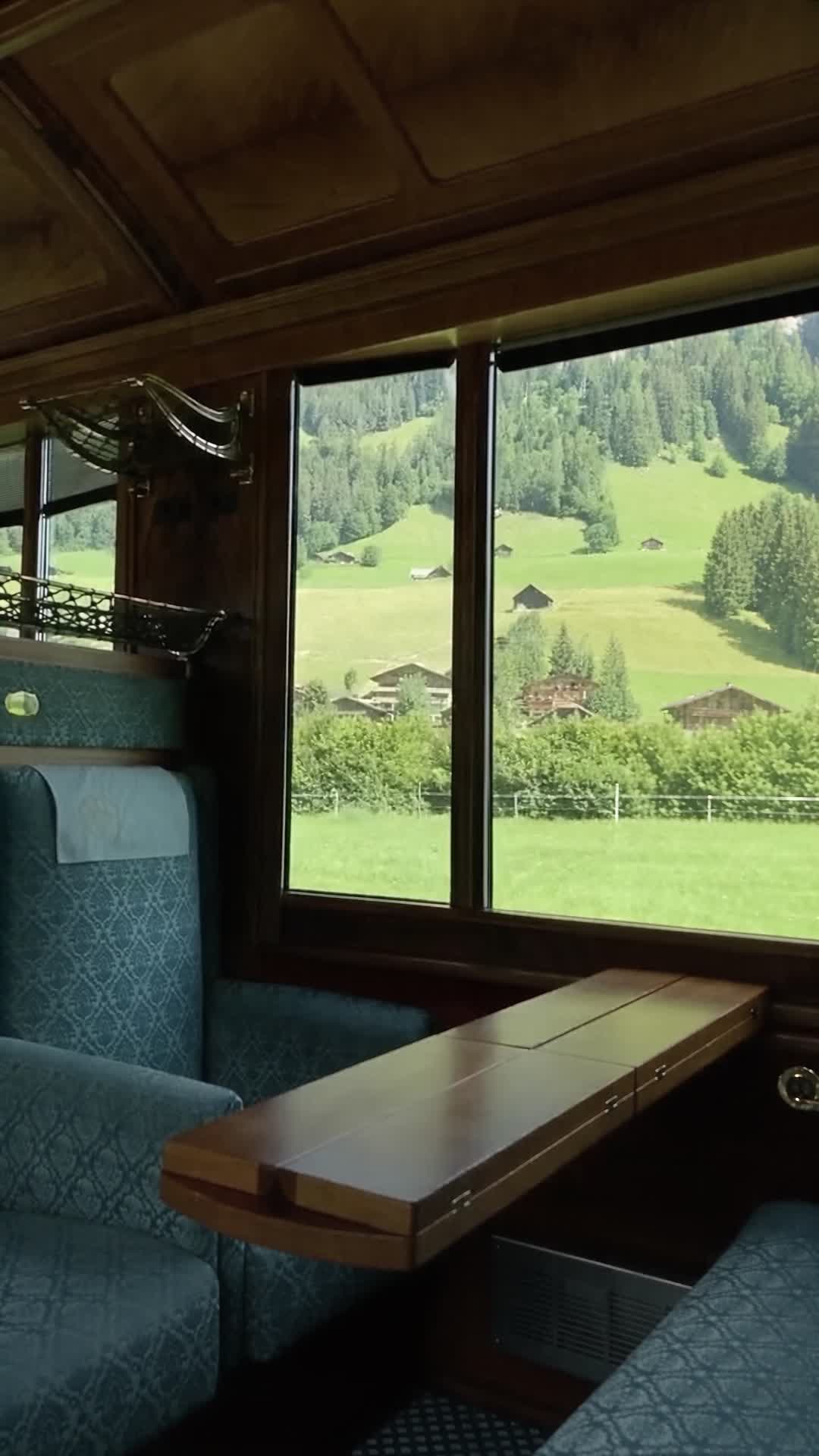
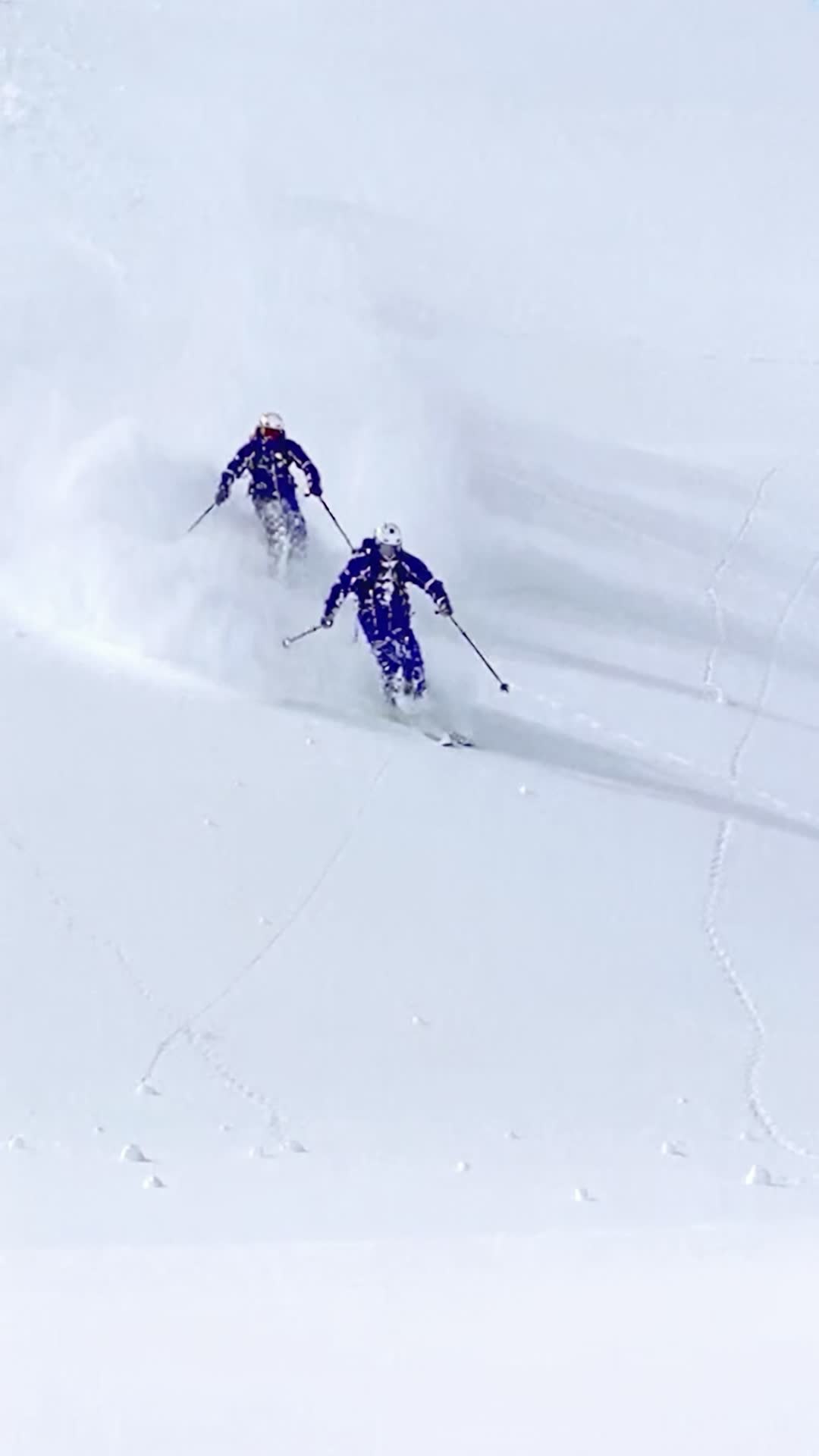
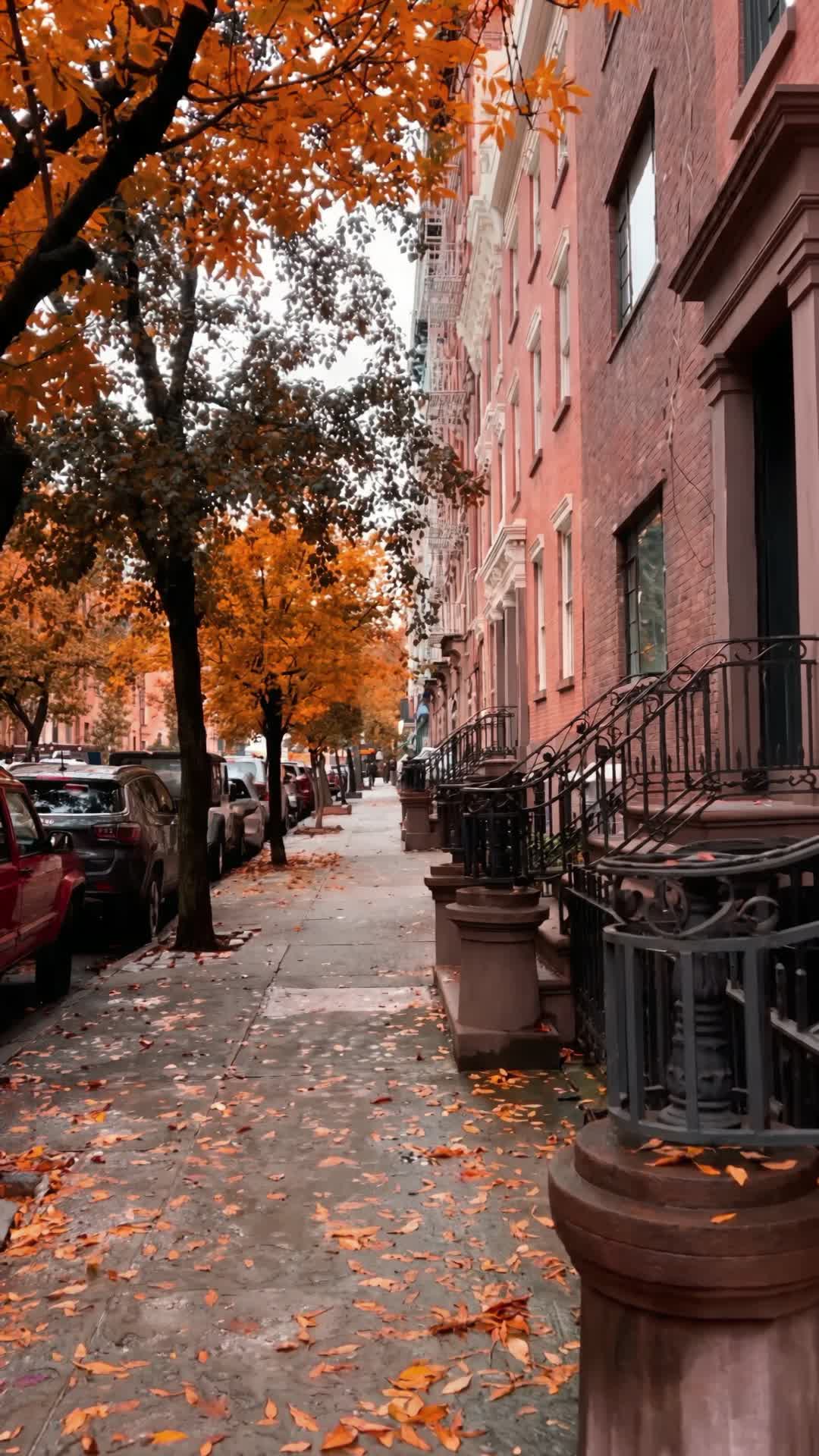
People and portraits
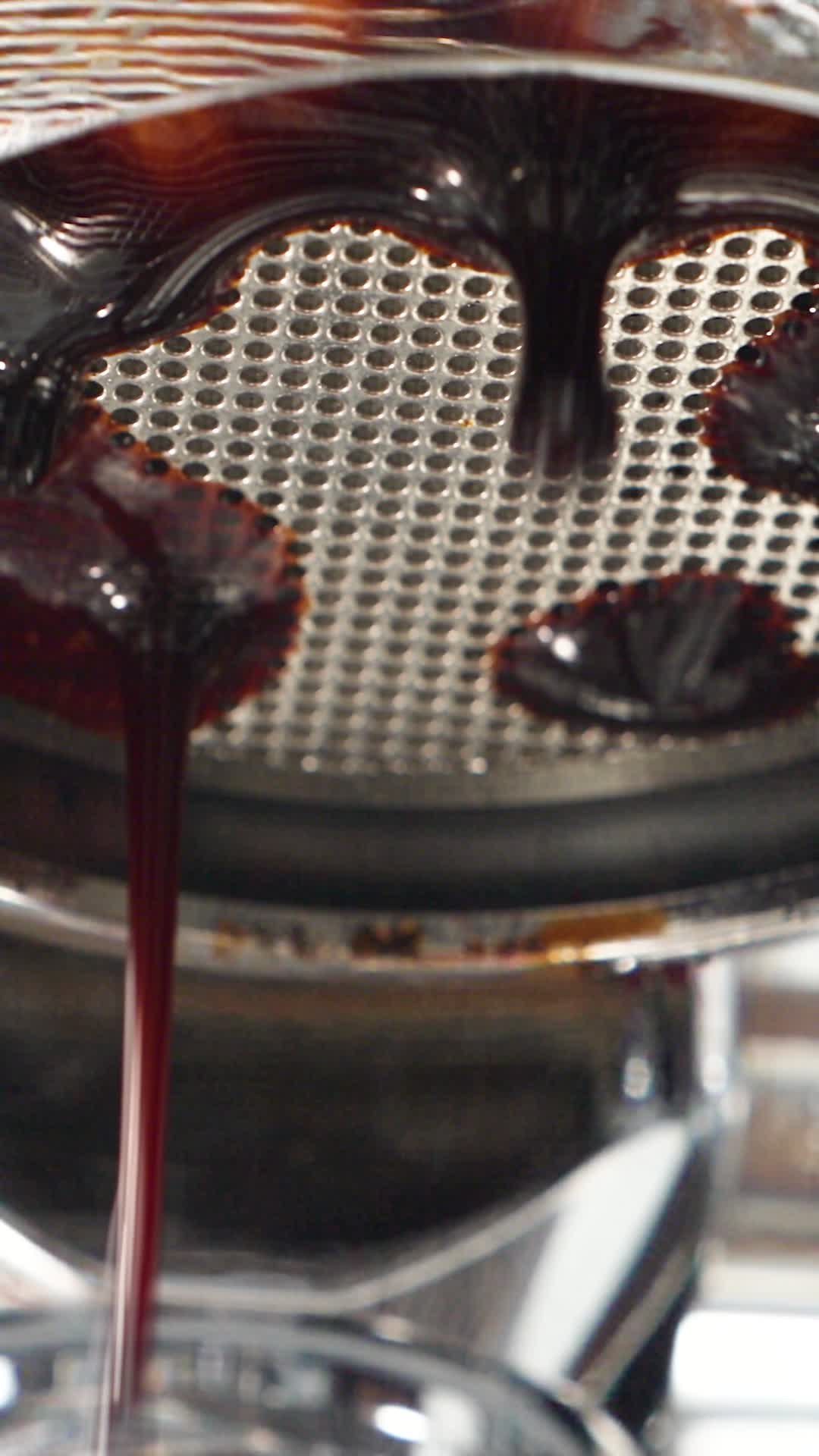
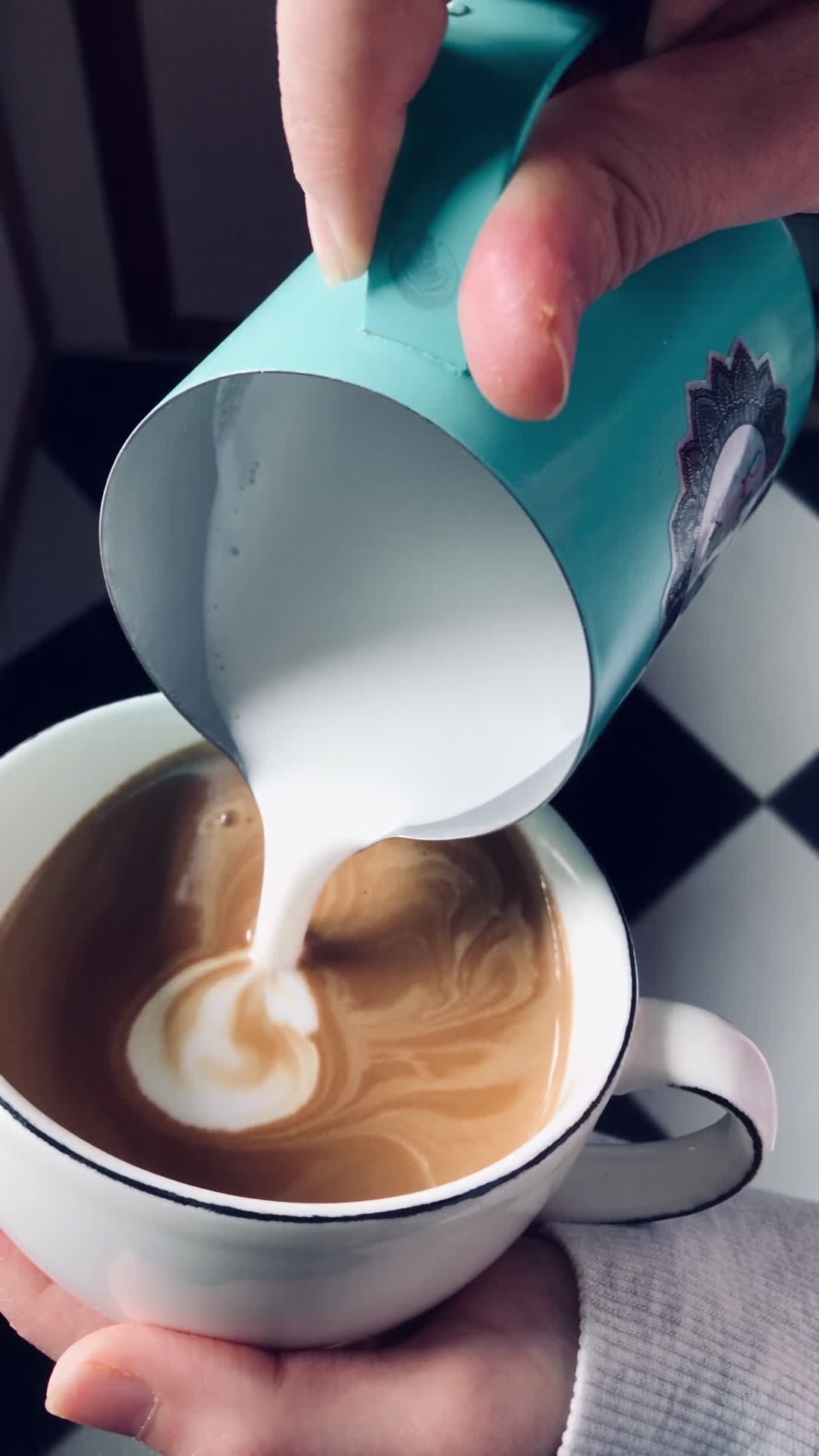
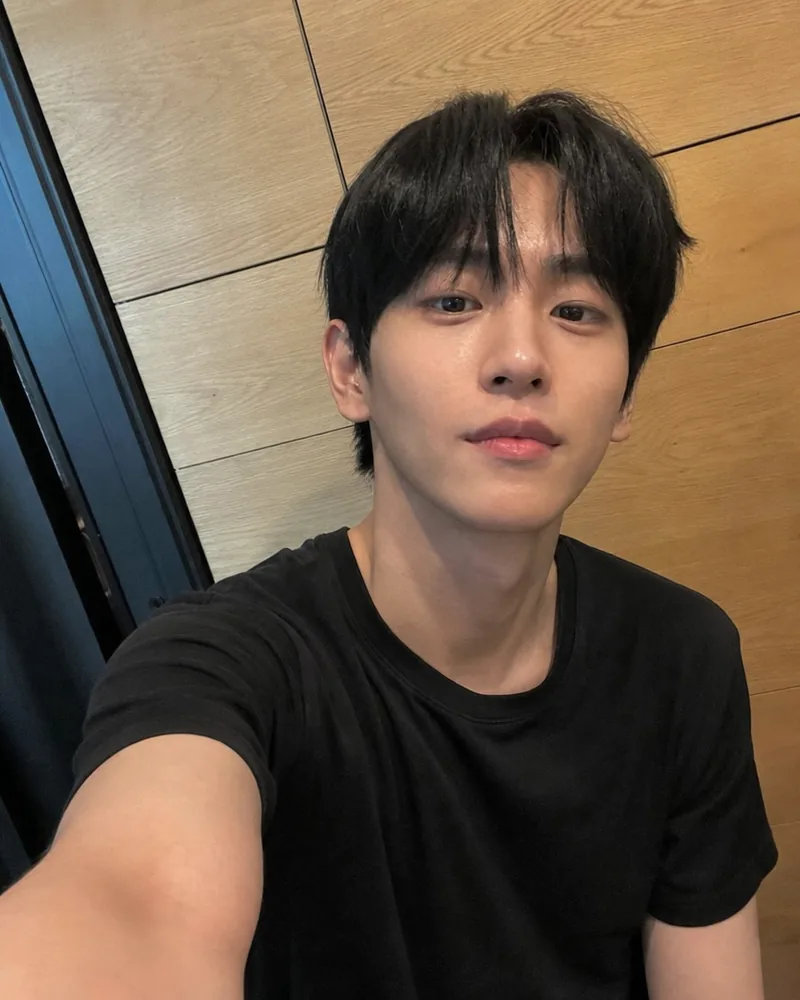
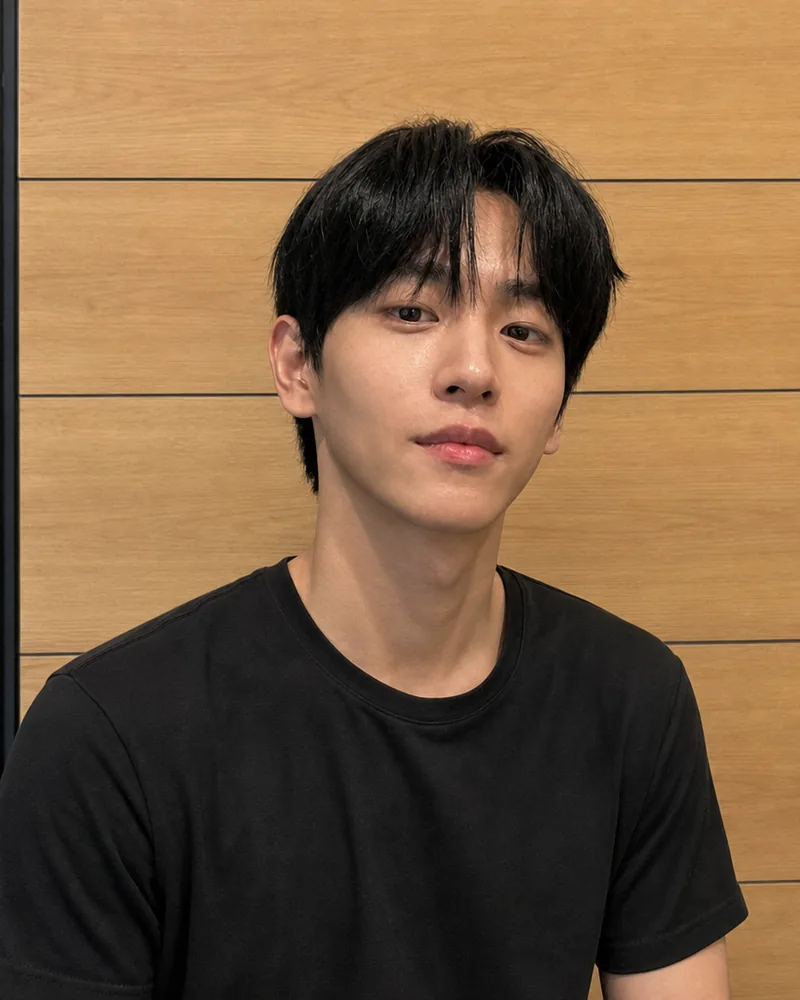
A café owner at his machine
Auto motion, no direction written
Upload one image and the generator continues it as a single, steady shot: the person, the light and the setting stay exactly as photographed while they start to move.
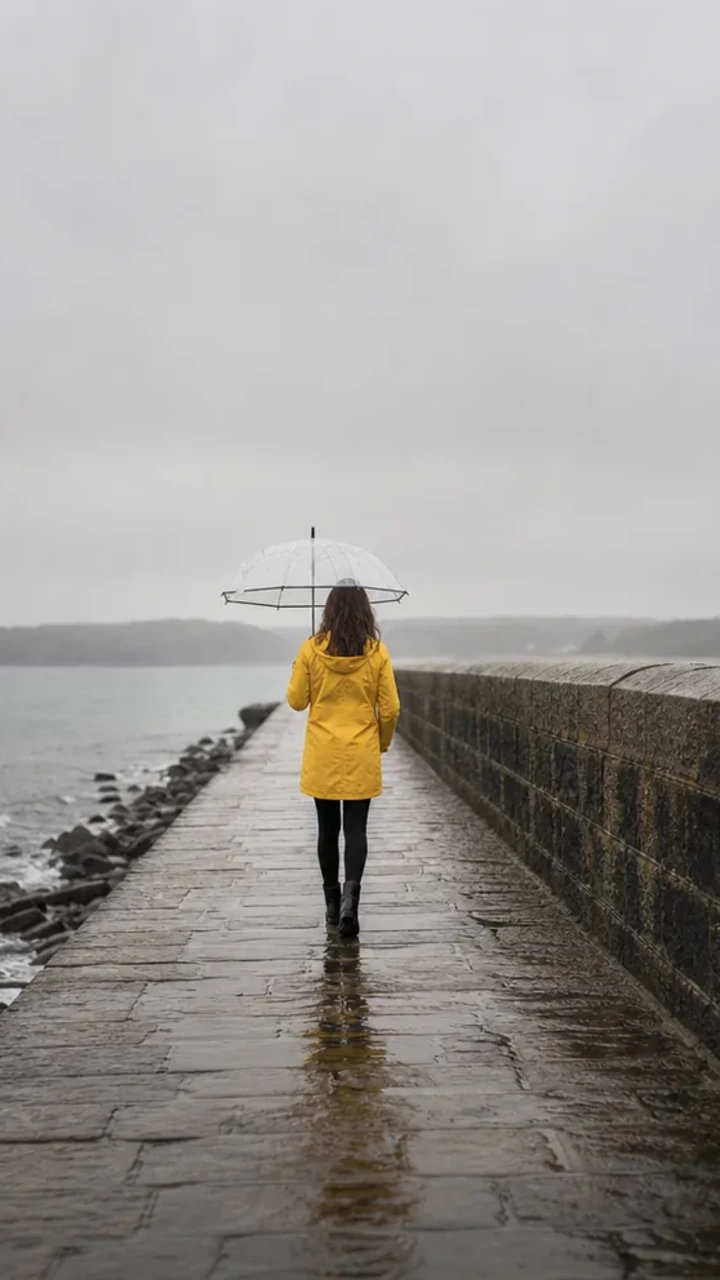
DirectionShe keeps walking away down the pier, her coat swinging a little with each step. Light rain falls and the sea moves against the rocks on the left. Hold the camera still. Rain and distant surf.
Every clip below started as the image shown in its first frame and was made with this tool. The line under each one is the exact direction that was typed, or nothing at all.
Auto motion, no direction written
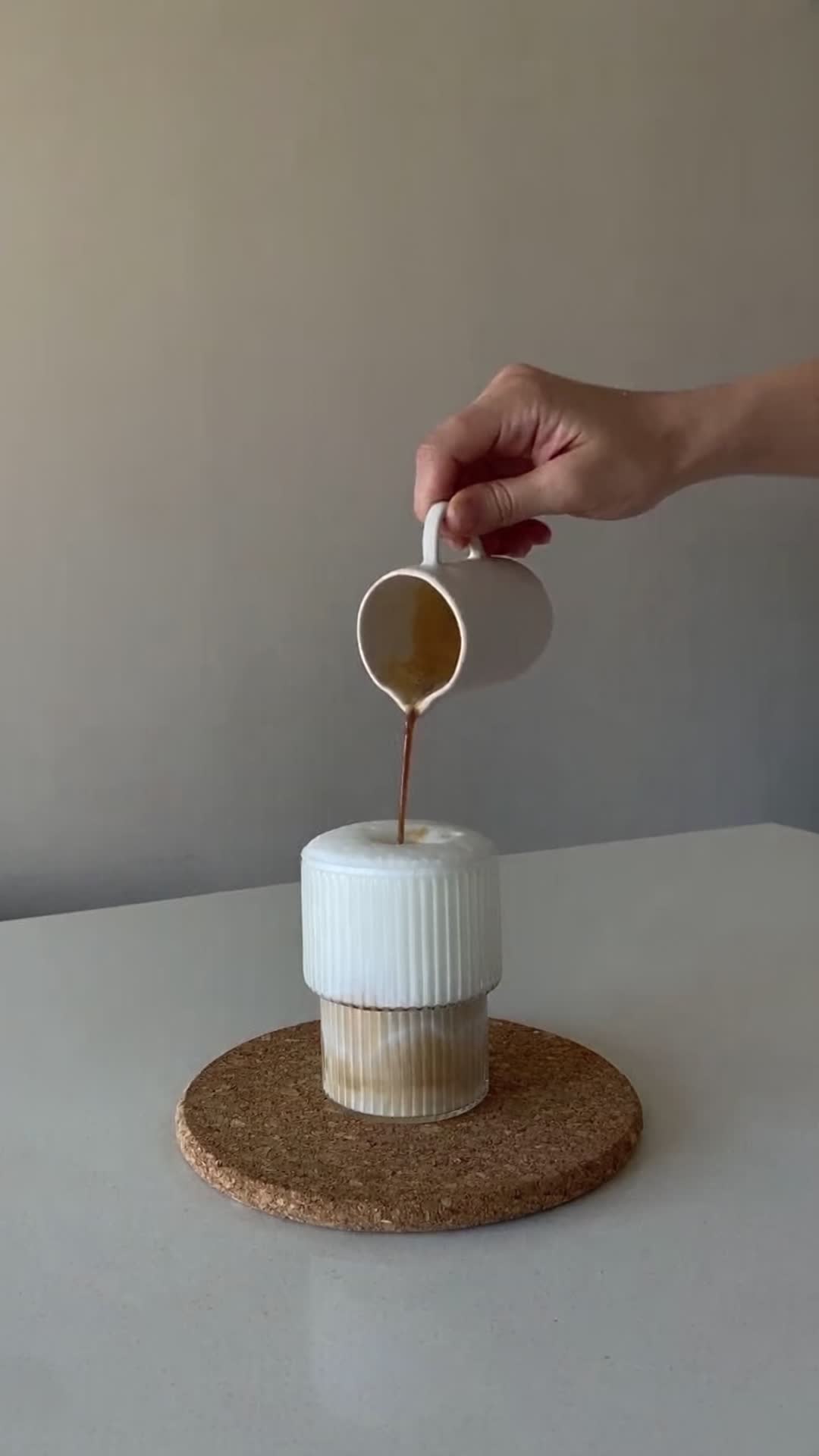
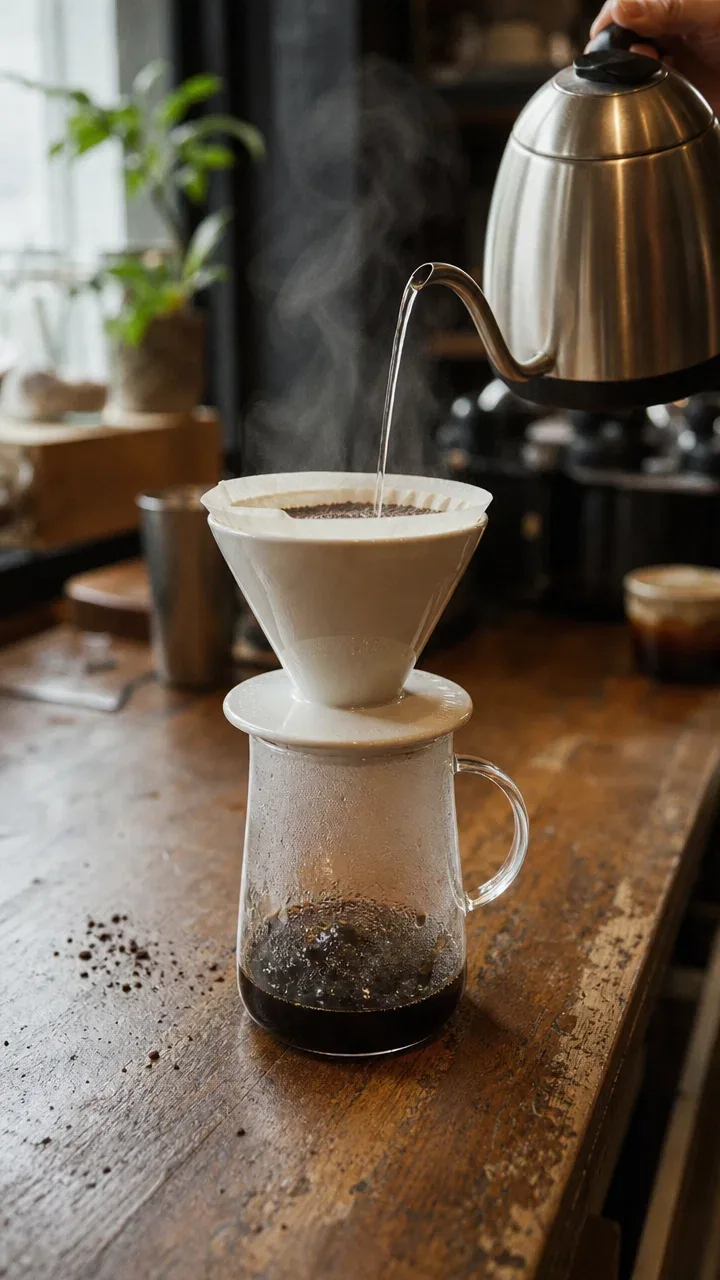
DirectionSlow push-in toward the dripper. The pour continues in a thin, steady stream and the steam drifts up and to the left. Coffee slowly rises in the carafe. Quiet café sounds.
DirectionSteam keeps rising from the broth. A slow, gentle push-in on the bowl while the cook in the background keeps working. Soft kitchen sounds.
DirectionThe dog shakes the water off its coat, spray flying, then looks back at the camera. Small ripples on the lake behind it. Hold the camera still. Dripping water and a quiet lake.
Three steps. No editing timeline, no keyframes, no prompt engineering unless you want it.
A photo, an illustration, a product shot, or a scene you made with another Typeshutter tool. It is centre-cropped to the ratio you pick, 9:16 or 16:9, and that cropped image becomes the exact first frame of the video.
Type what should move: the subject, the surroundings, the camera, the sound. Or leave the field empty and Typeshutter reads the image and chooses natural motion for you.
Pick 4 or 8 seconds on Veo 3.1 Fast, the default, or up to 12 seconds on Grok Imagine Video and Seedance. The video renders in about a minute, with ambient sound, and lands in your library ready to download.
Three more clips, each shown with the still it started from and the direction that made it.
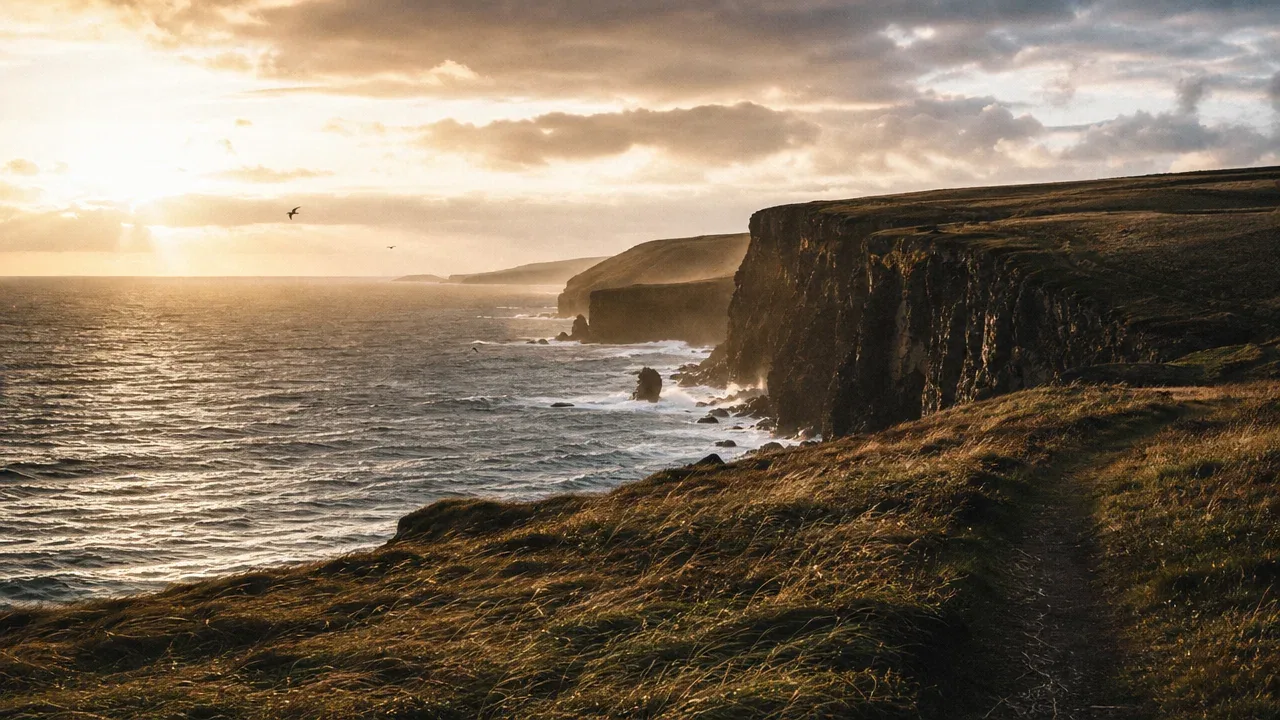
A wide 16:9 frame becomes a slow, living establishing shot: waves keep breaking, grass moves in the wind, birds drift. Useful for travel reels, property listings, title cards, and website headers.
DirectionWaves roll in and break on the rocks, the grass bends in the wind, and the gulls drift. Slow, steady drift forward along the path. Wind and surf.
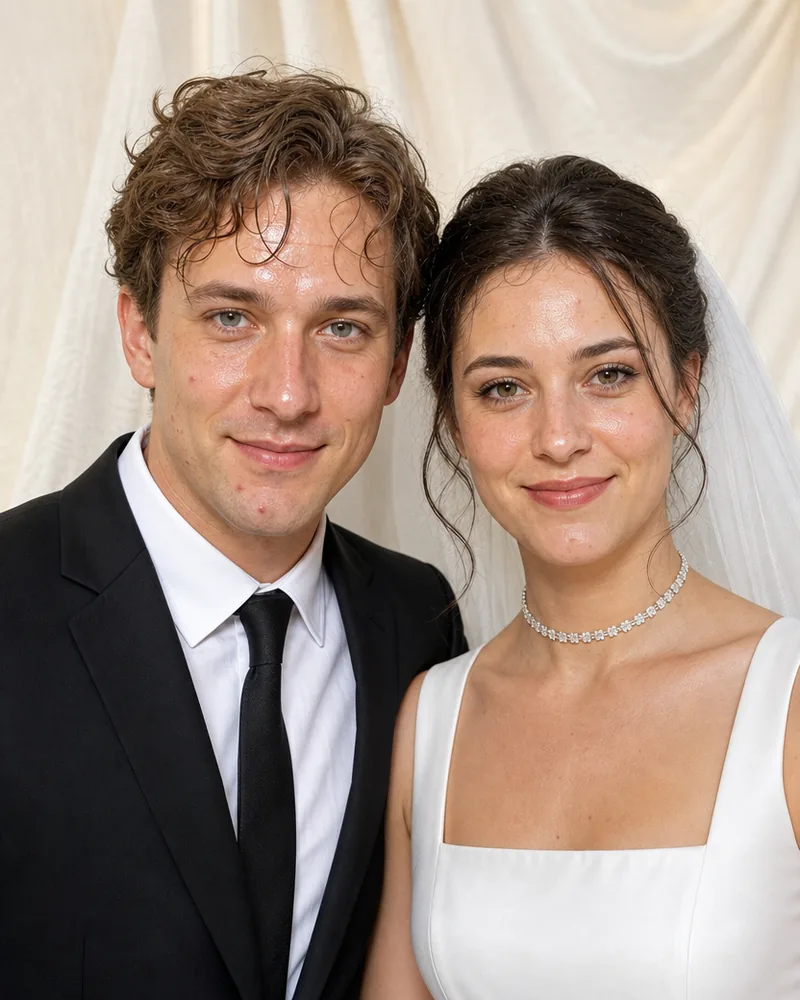
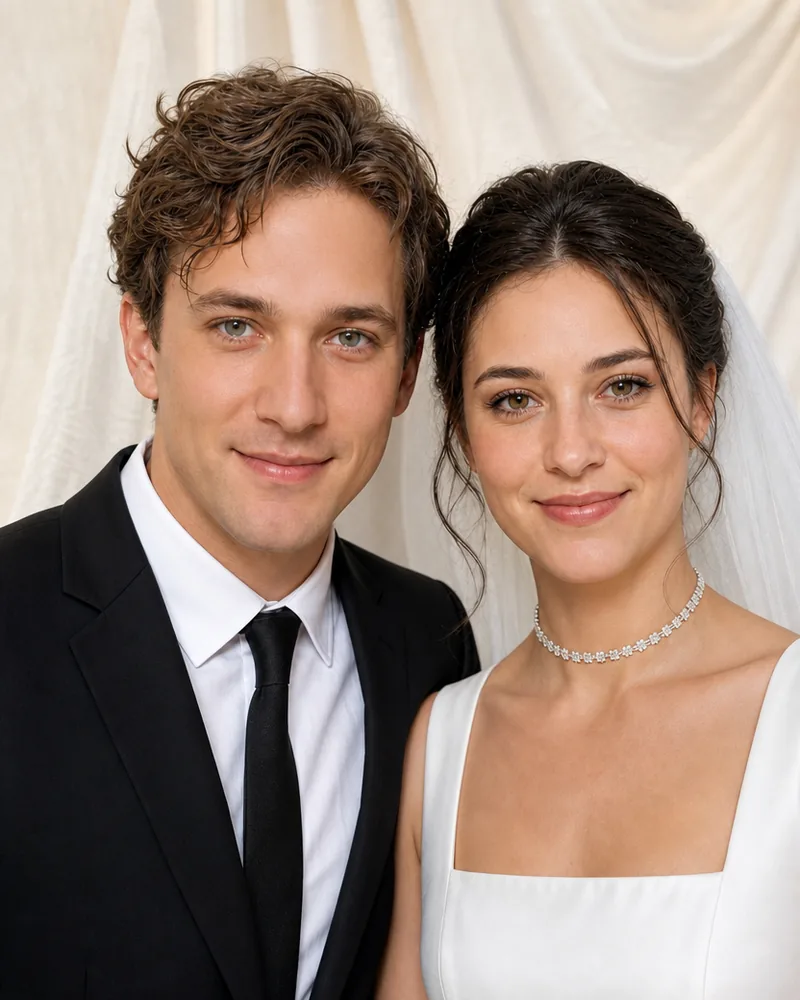
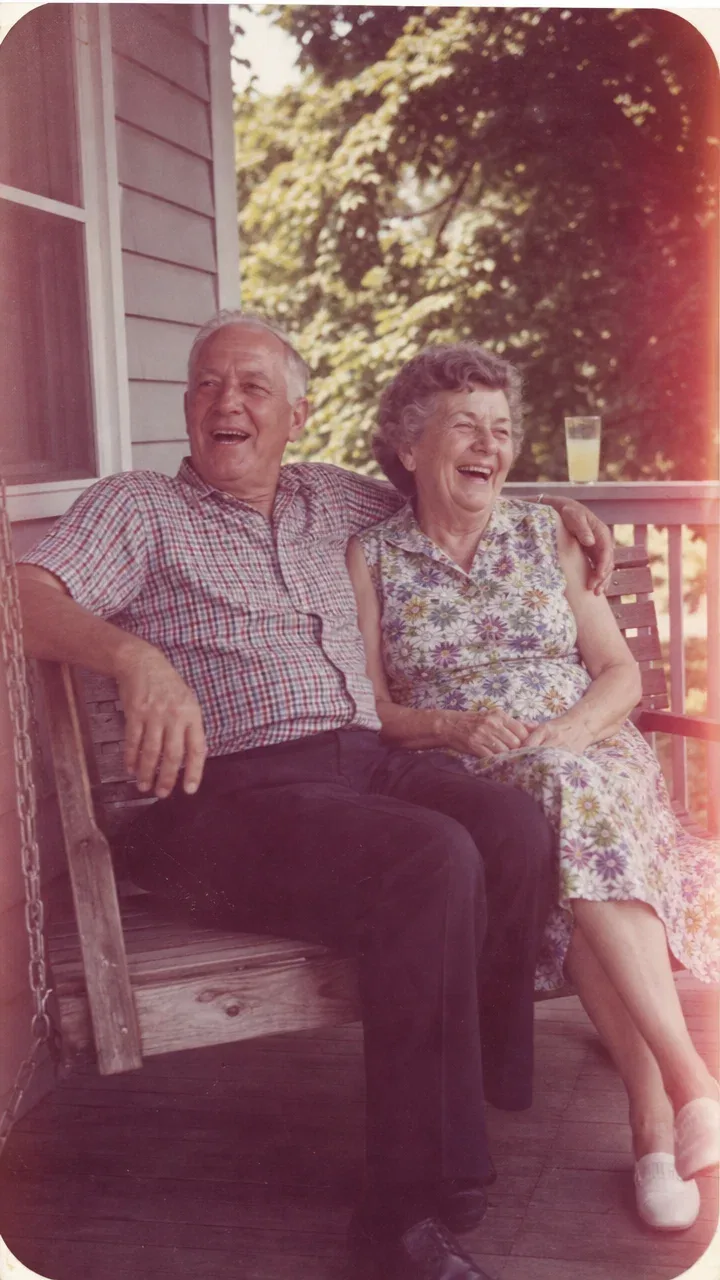
Faded colour, soft focus, and rounded corners stay as they are. The people in the frame move gently, the way a home movie would. The tool continues the moment plausibly; it does not recover what really happened next.
DirectionThey keep laughing and she leans into his shoulder. The swing rocks very slightly. Hold the camera still and keep the faded print look.
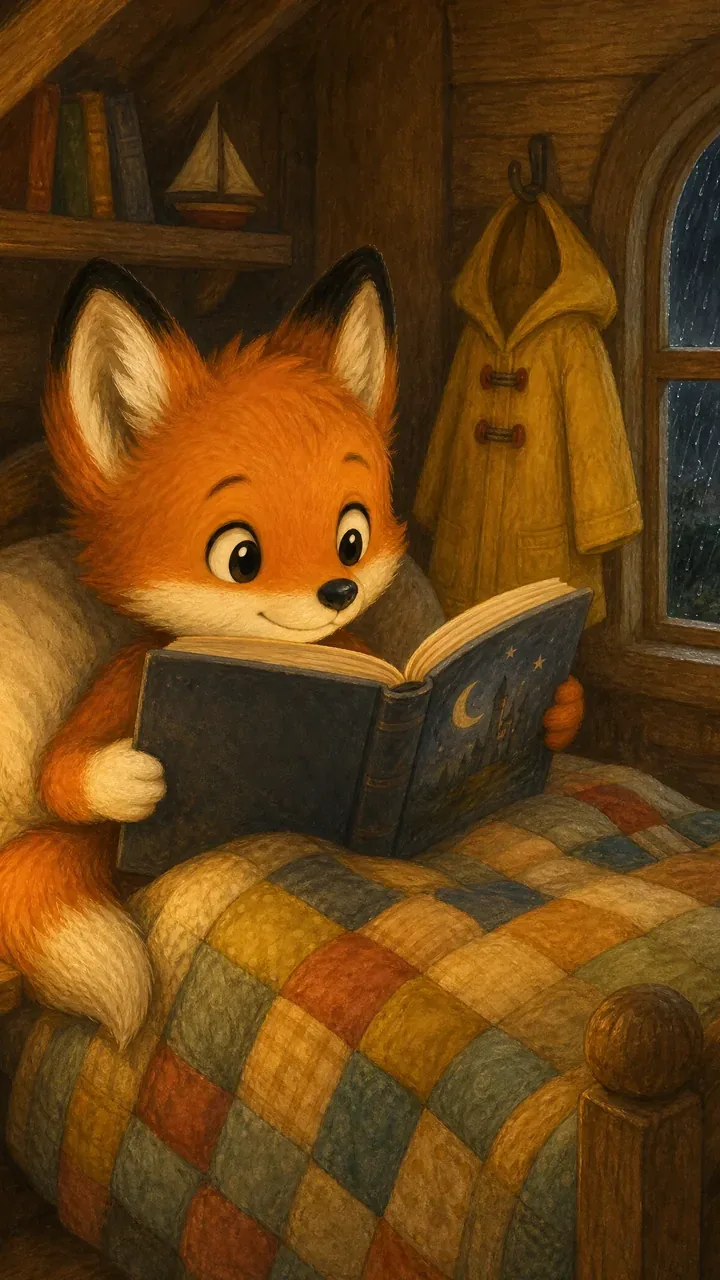
Painted texture, line work, and palette are preserved while the scene moves: a page turns, rain streaks the window, a lamp flickers. Storybook trailers, pitch decks, and social posts from artwork you already have.
DirectionThe fox kit turns a page and glances at the window. Rain streaks down the glass and the lantern flame flickers. Soft rain on the roof.
A good direction is one or two plain sentences. Name what moves and how the camera behaves. Everything else is read from the image.
"She looks up and smiles", "the dog shakes off the water", "the pour continues". One action that could plausibly follow the frame.
Steam, rain, wind in grass, passing traffic, flickering light. Small secondary motion is what makes a still read as footage.
"Slow push-in", "hold still", "gentle handheld drift". One camera behaviour per clip. Asking for a pan, a zoom, and an orbit in eight seconds looks like a mistake.
"Wind and surf", "quiet café sounds". Only ambient sound that the visible scene supports is generated; dialogue, narration, and music are never invented.
The first frame is your image, pixel for pixel. Artefacts do not get fixed; they get animated.
A subject that fills a good part of the frame moves convincingly. Dozens of small figures tend to drift.
The tool continues the image you uploaded. It will not cut to a new location, add characters who are not in the frame, or change what the product looks like.
Everything is set in the composer before you create. Defaults are shown first.
| Opening frame | Your image, centre-cropped to the chosen ratio, is the exact first frame |
|---|---|
| Aspect ratio | 9:16 vertical by default, or 16:9 widescreen |
| Duration | 8 seconds by default; 4 seconds on Veo, and 4, 8, or 12 seconds on Grok Imagine and Seedance |
| Resolution | 720p by default; 1080p and 4K on Veo 3.1 at 8 seconds, up to 1080p on Grok Imagine Video 1.5 and Seedance 2.5 |
| Sound | Ambient sound that the scene supports, generated with the video. No invented dialogue or music |
| Motion | Your written direction, or Auto motion chosen from the image when the field is left blank |
Recent public posts from the community, created with this tool.
No. Leave the direction blank and Typeshutter reads the uploaded image and chooses natural motion for it privately. The café clip on this page was made that way. If you do write a direction, it guides the subject, the surroundings, the camera, and the ambient sound within the same continuity rules.
No. The AI invents a plausible continuation of the visible scene. It does not recover real footage or reconstruct the actual event, so treat the result as a new clip that starts on your image, not as a record.
8 seconds by default. Veo 3.1 models offer 4 or 8 seconds at 720p and 8 seconds at 1080p or 4K. Grok Imagine Video and Seedance offer 4, 8, or 12 seconds. Longer sequences are made by creating several clips and cutting them together in an editor.
9:16 vertical is the default and 16:9 widescreen is the alternative; there is no square or 4:5 video output. Resolution is 720p by default, with 1080p and 4K available on Veo 3.1 and Veo 3.1 Fast for 8-second clips, and up to 1080p on Grok Imagine Video 1.5 and Seedance 2.5. Your image is centre-cropped to the chosen ratio, so pick the ratio before you compose the crop.
Yes, when the scene supports it. The models generate ambient sound that matches what is visible, such as surf, rain, steam, or room tone. Dialogue, narration, music, and off-camera events are never invented. You can mute or replace the track in any editor.
Sharp, well-lit images with one clear subject that fills a good part of the frame. Photos, product shots, illustrations, concept art, and scenes made with the AI character generator all work. Very small or very compressed images and crowded frames with many tiny figures give weaker results because the first frame is used exactly as uploaded.
Yes. The person keeps the appearance visible in the frame and moves in a restrained, natural way; the tool does not change their identity, age them, or add anyone who is not in the image. Photos of minors are kept age-appropriate, and the usual content rules apply.
Yes. Videos you create are yours to use in ads, product pages, social posts, pitch decks, and client work under the Typeshutter terms of service. Make sure you have the rights to the image you upload.
New accounts receive trial credits that cover a first video. After that, each clip is priced by model, duration, and resolution and deducted from your credit balance when you create it. There is no watermark on any tier.
Most clips are ready in one to three minutes depending on the model and resolution. You can keep working while it renders; the video appears in your library when it is done.
The uploaded frame is preserved as the opening frame, including packaging, labels, and text, and the motion contract tells the model not to redesign, relabel, or replace what is visible. Keep camera moves slow and the product large in frame for the most faithful result, and check the clip before publishing.
Create again with the same image and a different direction, or switch the model under Settings. Each creation is one clip. You can also extend a story by using the last frame of one clip as the opening frame of the next.
One or more selected files can’t be uploaded. Please upload different files, or change the format.